📖 Lesson content
Summary
Computer use is a powerful feature that lets Claude interact directly with desktop environments, essentially giving it the ability to control a computer like a human would. This opens up entirely new possibilities for automation, testing, and complex workflows that go beyond simple text generation.
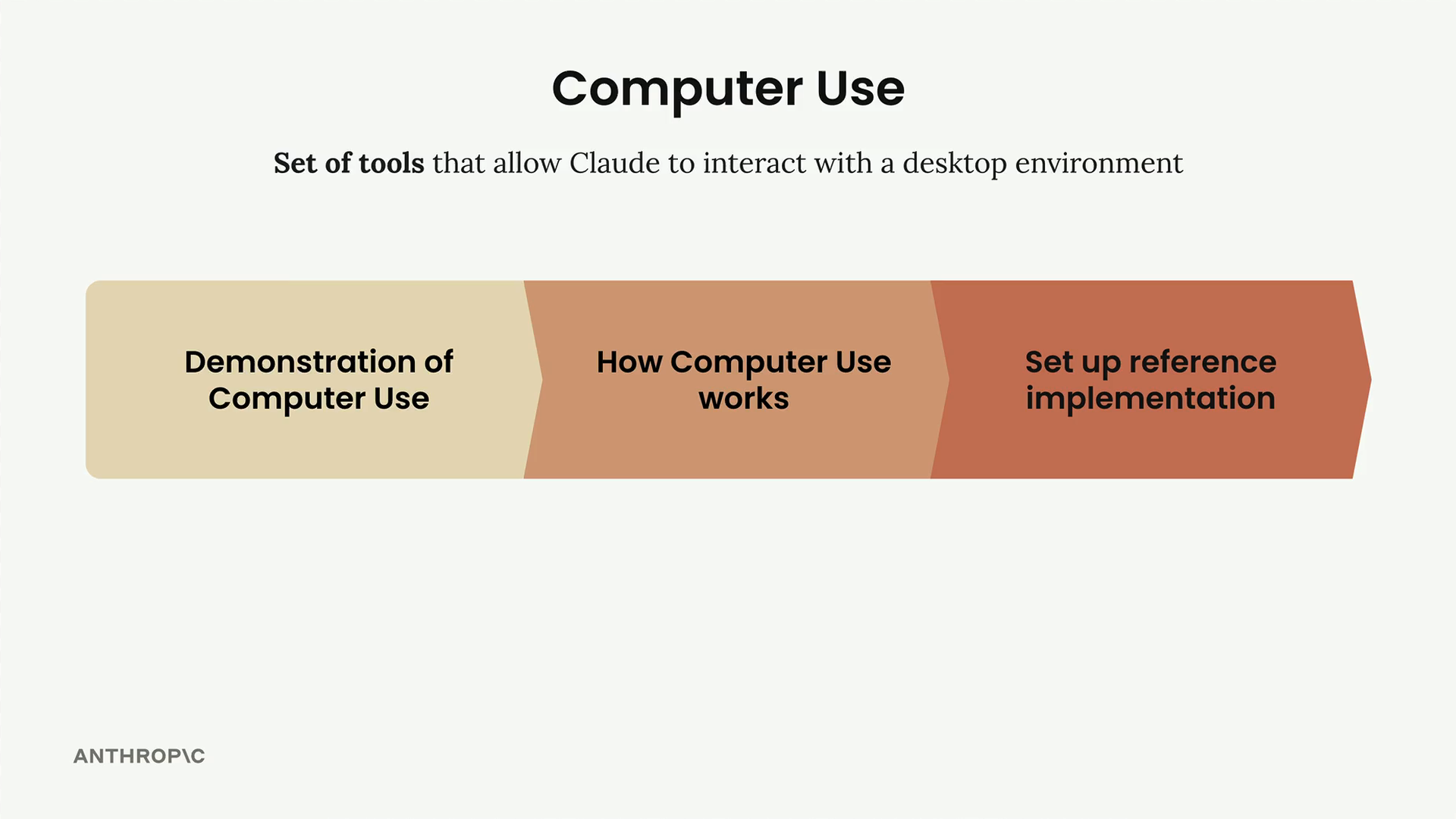
What Computer Use Can Do
Instead of just describing what to do or generating code, Claude can actually perform tasks by:
- Taking screenshots to see what's on screen
- Clicking buttons and links
- Typing text into forms and applications
- Navigating between different applications and browser tabs
- Following multi-step processes that require visual feedback
This makes it particularly valuable for tasks like quality assurance testing, where you need to interact with a user interface and verify that everything works as expected.
Real-World Example: Automated QA Testing
Here's a practical scenario that shows the power of computer use. Imagine you've built a React component with an autocomplete feature - users can type @ to mention files or resources. The component seems to work fine at first glance, but you want to thoroughly test it for edge cases.
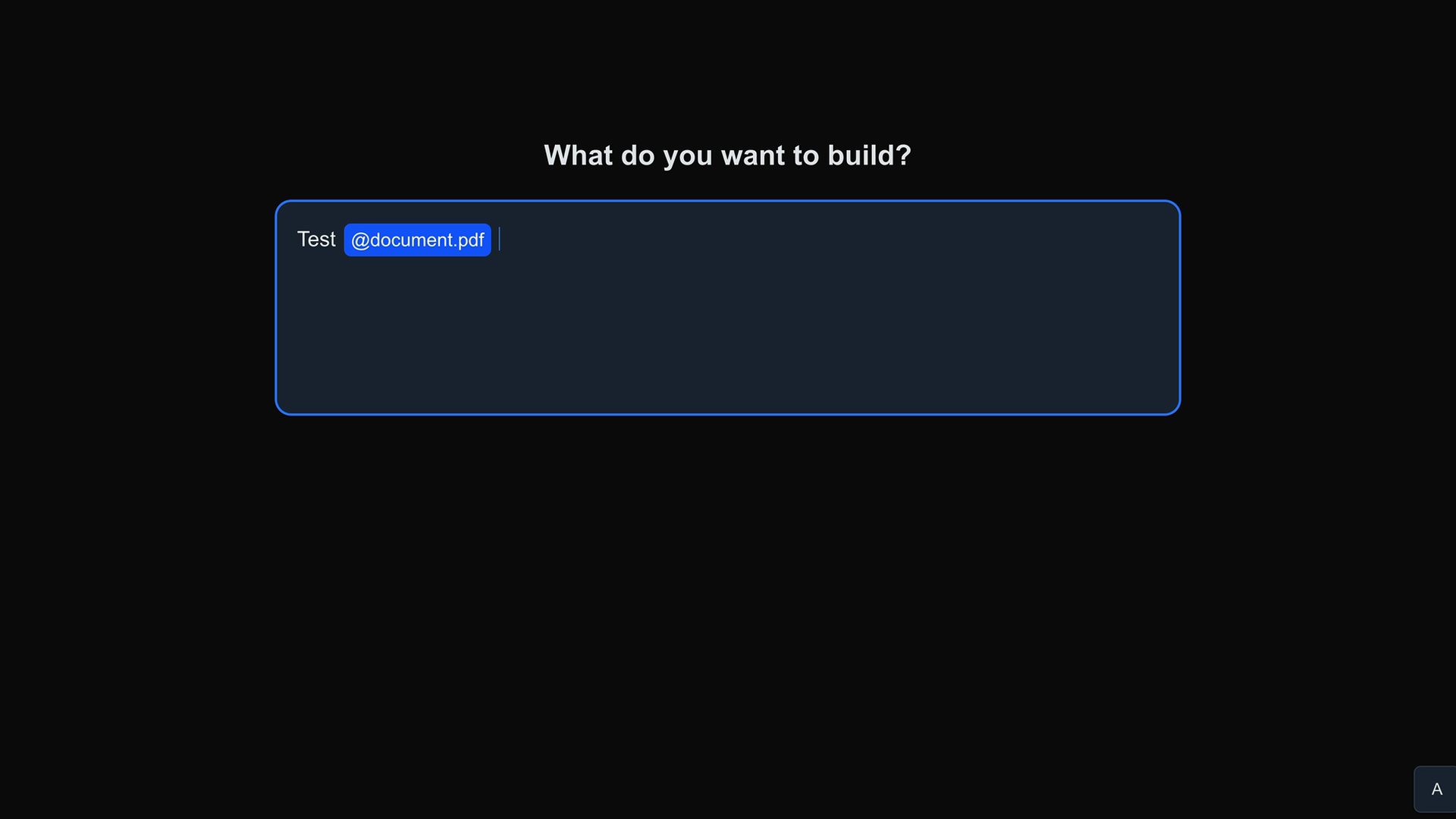
Rather than manually testing every scenario yourself, you can set up Claude with computer use to handle the QA process. You provide Claude with specific test cases to run:
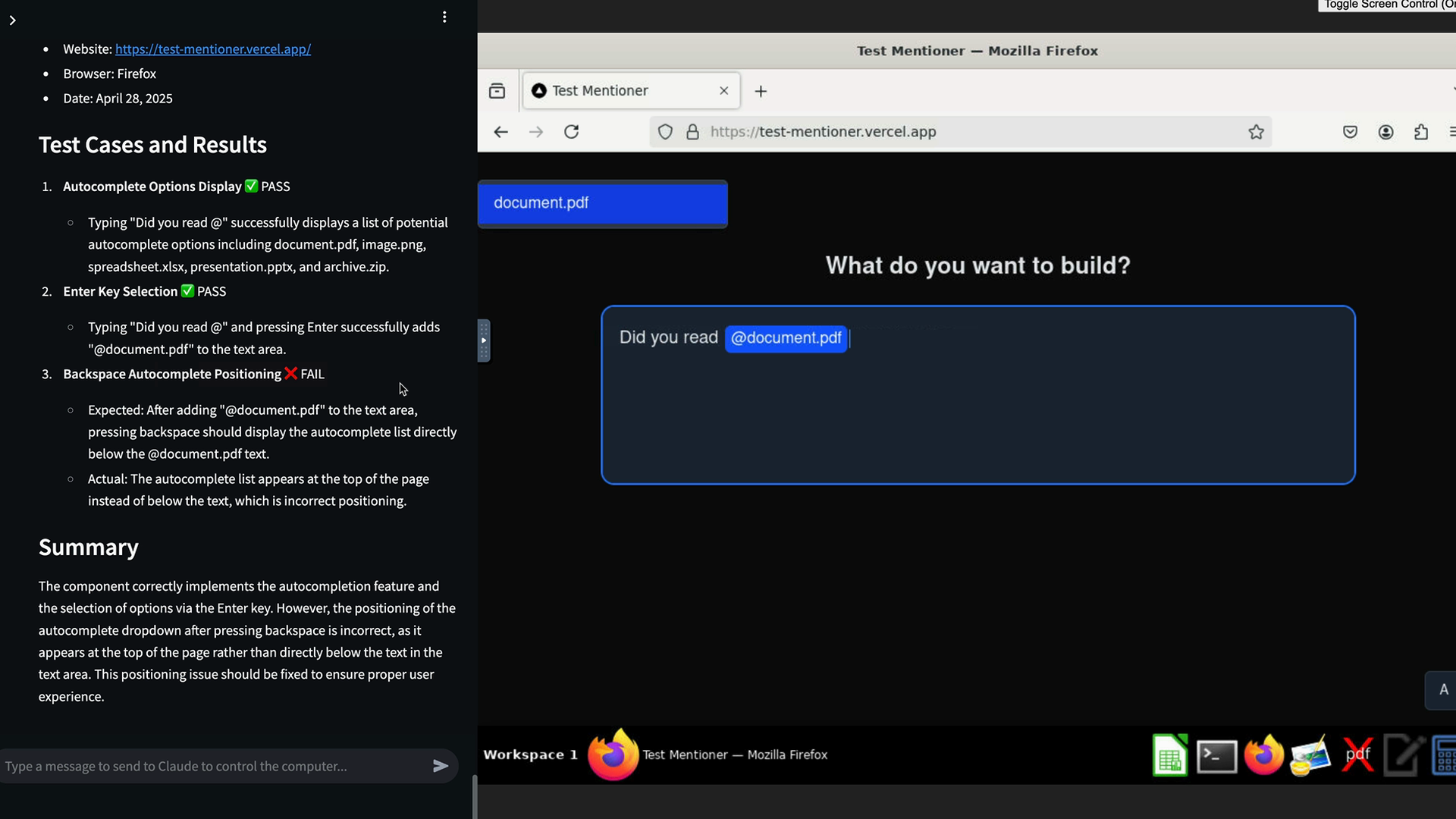
- Verify that typing "Did you read @" displays autocomplete options
- Test that pressing Enter properly adds a mention to the text area
- Check that pressing backspace after adding mentions shows the autocomplete list in the correct position
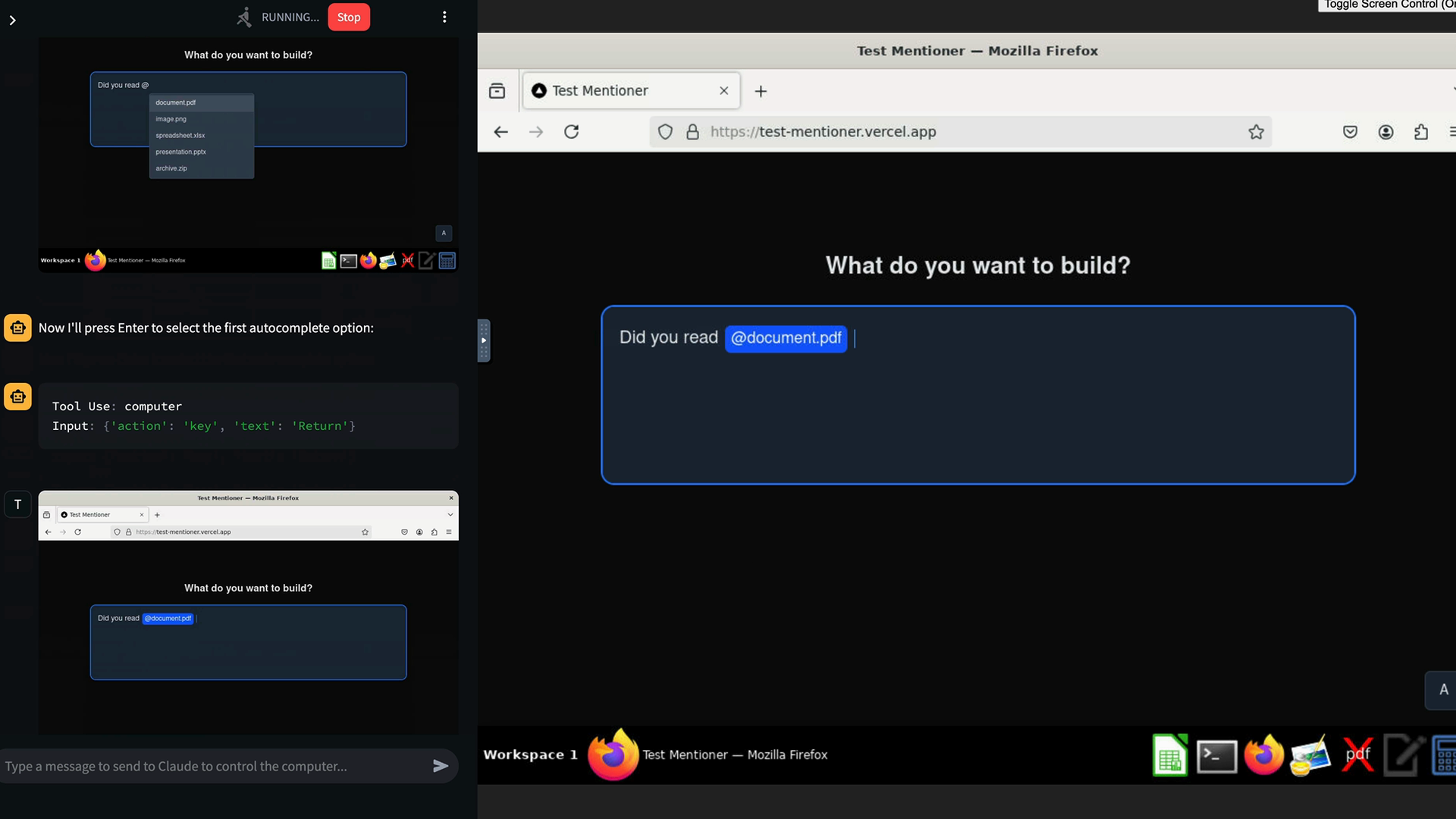
Claude will systematically work through each test case, taking screenshots, interacting with the interface, and documenting what happens. In this example, Claude discovered that while the first two tests passed, the third one failed - the autocomplete dropdown was appearing in the wrong location when users pressed backspace.
How the Testing Process Works
When you give Claude a testing task, it follows a structured approach:
- Opens a browser and navigates to your application
- Executes each test case step by step
- Takes screenshots to verify visual behavior
- Refreshes the page between tests to ensure clean state
- Documents results with specific details about what passed or failed
- Provides a summary report with actionable findings
The key advantage is that Claude can catch issues you might miss during manual testing, and it can run the same tests consistently every time you make changes to your code.
Setting Up Computer Use
Computer use runs in an isolated environment for security. The typical setup involves:
- A Docker container running a desktop environment
- A browser instance that Claude can control
- A chat interface where you give Claude instructions
- Complete isolation from your main system
This isolation is crucial because it means Claude can interact with applications and websites without any risk to your personal data or system security.
Best Practices for Computer Use
When working with computer use, keep these guidelines in mind:
- Be specific about what you want Claude to test or accomplish
- Provide clear success criteria for each task
- Break complex workflows into smaller, manageable steps
- Always run computer use in isolated environments
- Review Claude's findings and verify important results manually
Computer use represents a significant step forward in AI capabilities, moving from generating text about tasks to actually performing them. Whether you're doing QA testing, automating repetitive workflows, or exploring complex applications, it can save substantial time while providing consistent, documented results.
🔁 Related lessons
- Next: How Computer Use works
- Previous: Automated debugging
- Same section: Overview of Claude Models · Accessing the API · Making a request
- Part of paths: Path C
- Reference docs: Glossary · Skills atlas · By use-case
📚 Source & attribution
- Original Anthropic Academy lesson: https://anthropic.skilljar.com/claude-in-amazon-bedrock/276807
- © 2025 Anthropic. Educational fair-use only.