📖 Lesson content
Summary
MCP servers can define prompts - pre-written, high-quality instructions that clients can use instead of writing their own prompts from scratch. Think of prompts as carefully crafted templates that give better results than what users might write on their own.
Why Use Prompts?
Let's say you want Claude to reformat a document into markdown. You could just ask "Convert report.pdf to markdown" and it would work fine. But you'd probably get much better results with a thoroughly tested, detailed prompt that covers edge cases and gives specific formatting instructions.
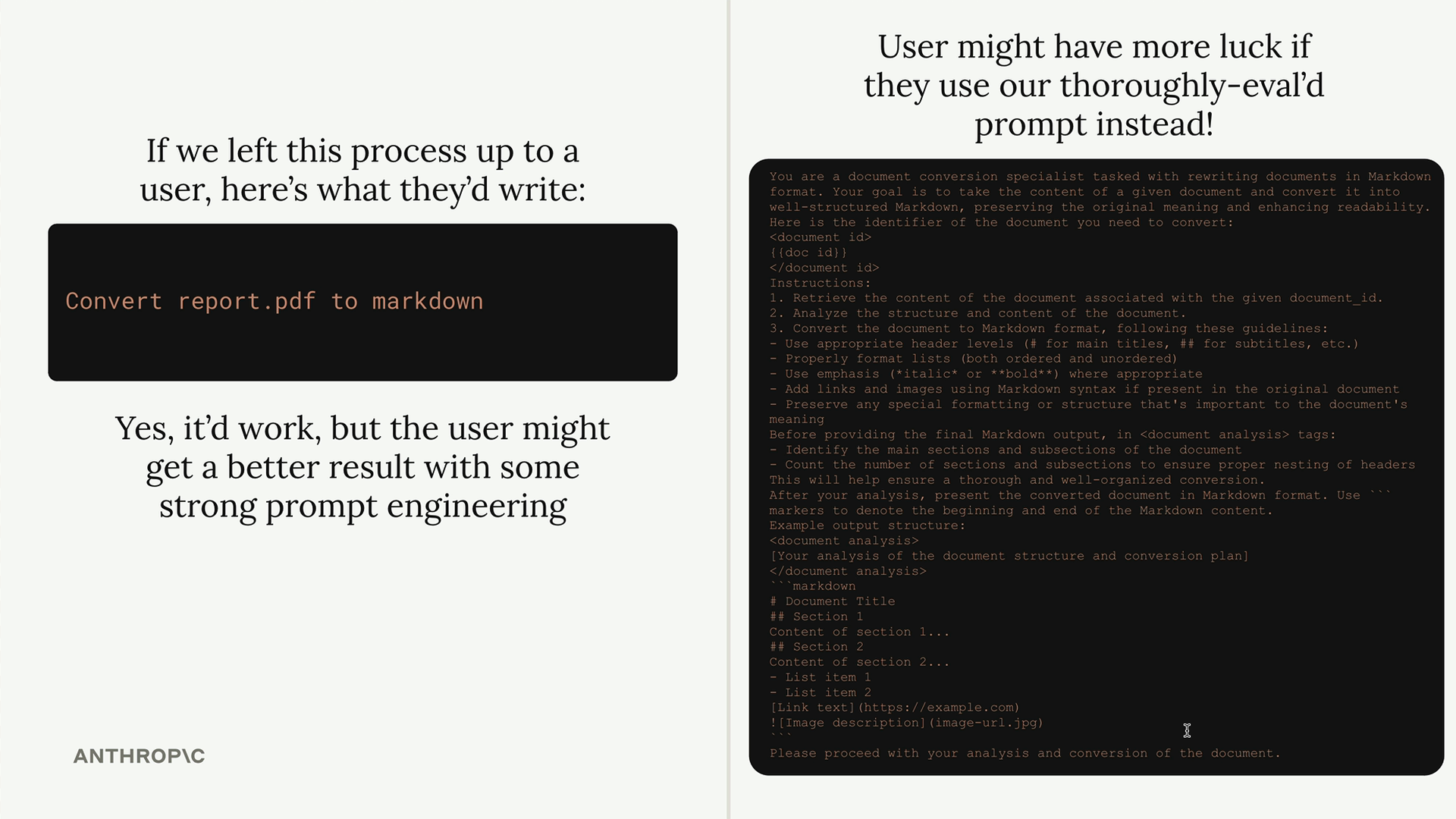
The idea is simple: as MCP server developers, we can spend time crafting and testing really good prompts, then make them available to anyone using our server. Users get better results without having to become prompt engineering experts themselves.
Defining a Prompt
Prompts use a similar decorator pattern to tools and resources. Here's the basic structure:
@mcp.prompt(
    name="format",
    description="Rewrites the contents of the document in Markdown format."
)
def format_document(
    doc_id: str = Field(description="Id of the document to format")
) -> list[base.Message]:
    # Return a list of messages
The function returns a list of messages that can be sent directly to Claude. This lets you build complex prompts with multiple user and assistant messages if needed.
Building the Format Prompt
For our document server, we'll create a prompt that reformats documents into markdown. The prompt needs to:
- Take a document ID as input
- Use the read_doc_contents tool to get the document
- Reformat it with proper markdown syntax
- Save the changes back to the document
Here's how the implementation looks:
def format_document(
    doc_id: str = Field(description="Id of the document to format")
) -> list[base.Message]:
    prompt = f"""
Your goal is to reformat a document to be written with markdown syntax.

The id of the document you need to reformat is:

{doc_id}

Add in headers, bullet points, tables, etc as necessary. Feel free to add in structure.
Use the 'edit_document' tool to edit the document. After the document has been reformatted...
"""

    return [
        base.UserMessage(prompt)
    ]
Testing the Prompt
Once you've defined your prompt, you can test it using the MCP Inspector. Navigate to the Prompts tab, select your prompt, and provide the required parameters.
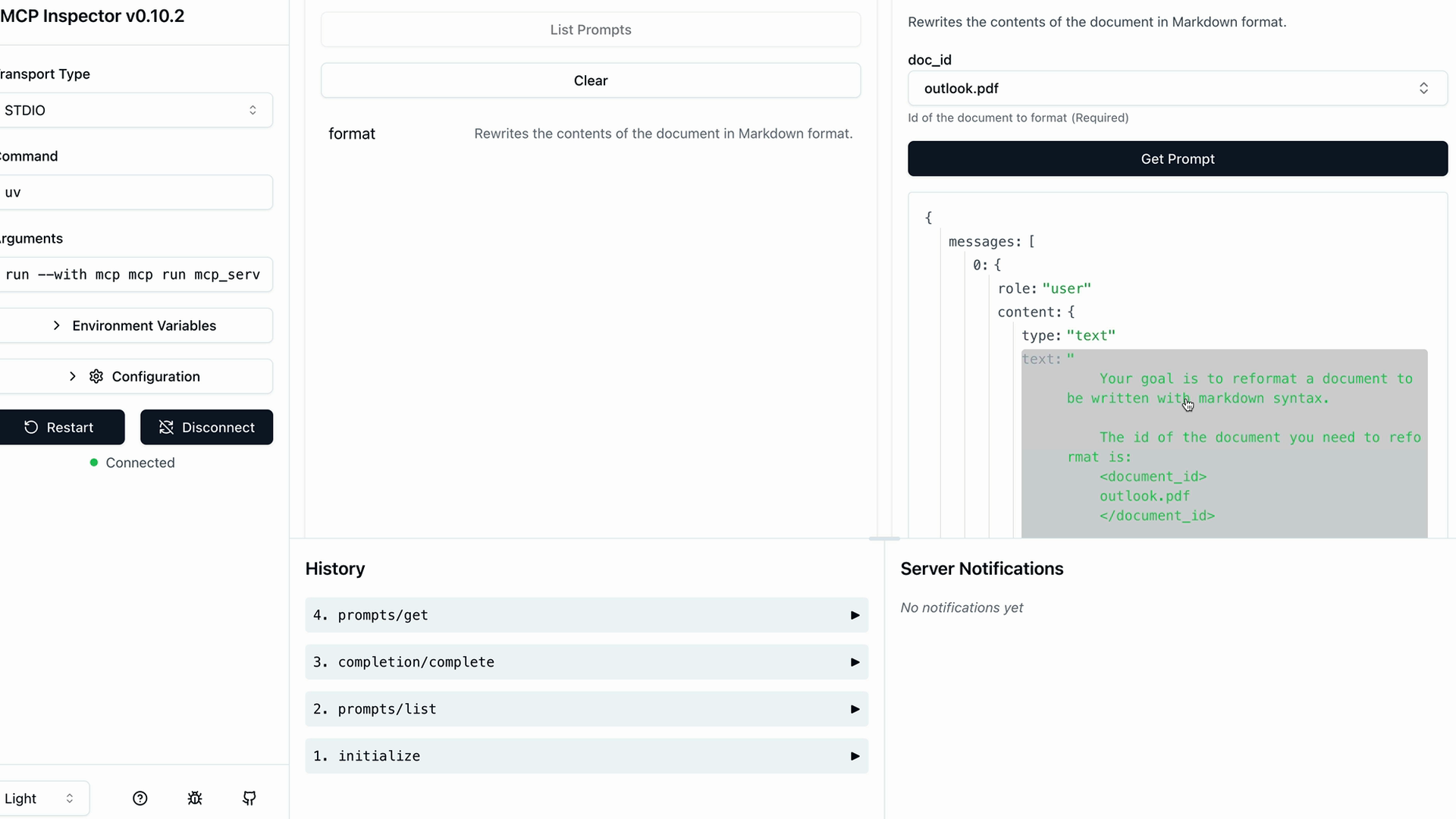
The inspector will show you the generated messages that would be sent to Claude. You can verify that parameter interpolation works correctly and that your prompt contains all the necessary instructions.
Key Benefits
- Quality Control - Server authors can test and refine prompts before users see them
- Consistency - Everyone gets the same high-quality prompt instead of improvising
- Specialization - Prompts can be tailored to your server's specific domain and capabilities
- Reusability - Multiple client applications can use the same well-crafted prompts
Remember to import the base module for message types:
from mcp.server.fastmcp.prompts import base
Prompts are particularly valuable when your MCP server has a specific focus area - like document management, data analysis, or code generation. You can provide users with battle-tested prompts that leverage your server's tools effectively.
🔁 Related lessons
- Next: Prompts in the client
- Previous: Accessing resources
- Same section: Overview of Claude Models · Accessing the API · Making a request
- Part of paths: Path C
- Reference docs: Glossary · Skills atlas · By use-case
📚 Source & attribution
- Original Anthropic Academy lesson: https://anthropic.skilljar.com/claude-in-amazon-bedrock/276801
- © 2025 Anthropic. Educational fair-use only.