📖 Lesson content
Video
Your First Prompt
You talk to Claude Code like you would any AI assistant. When entering your prompt, here are some things to consider that can both protect you and make things easier.
Auto-Accept vs. Approval
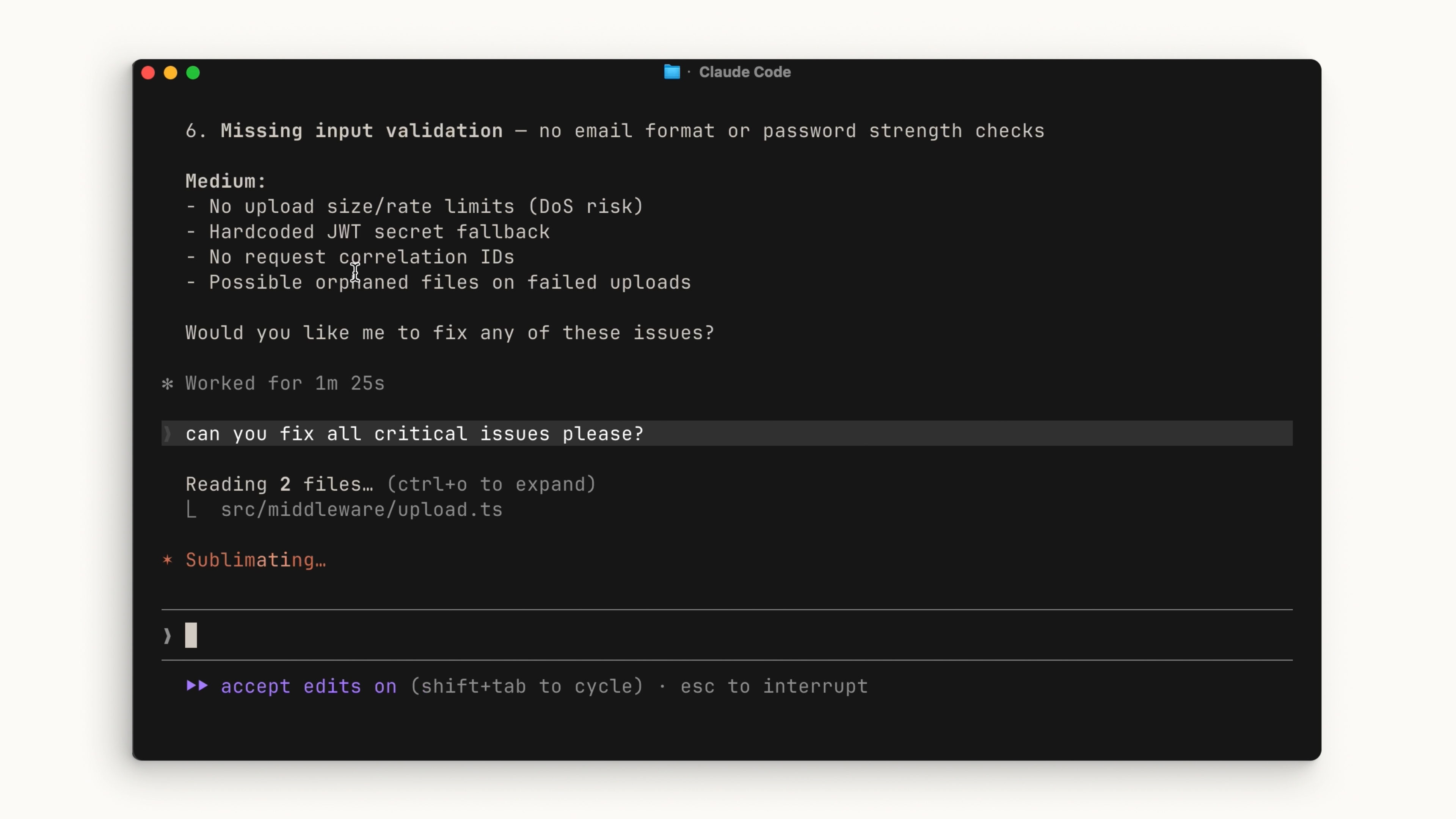
You can choose whether Claude auto-accepts every file change it suggests, or whether it asks for your explicit permission each time. Press Shift + Tab to cycle between modes.
- Approval mode: Claude asks permission each time it wants to edit a file or run a command.
- Auto-accept mode: File edits are automatically approved, but commands still require your permission.
There's no right or wrong answer — it's whatever you're comfortable with.
Plan Mode
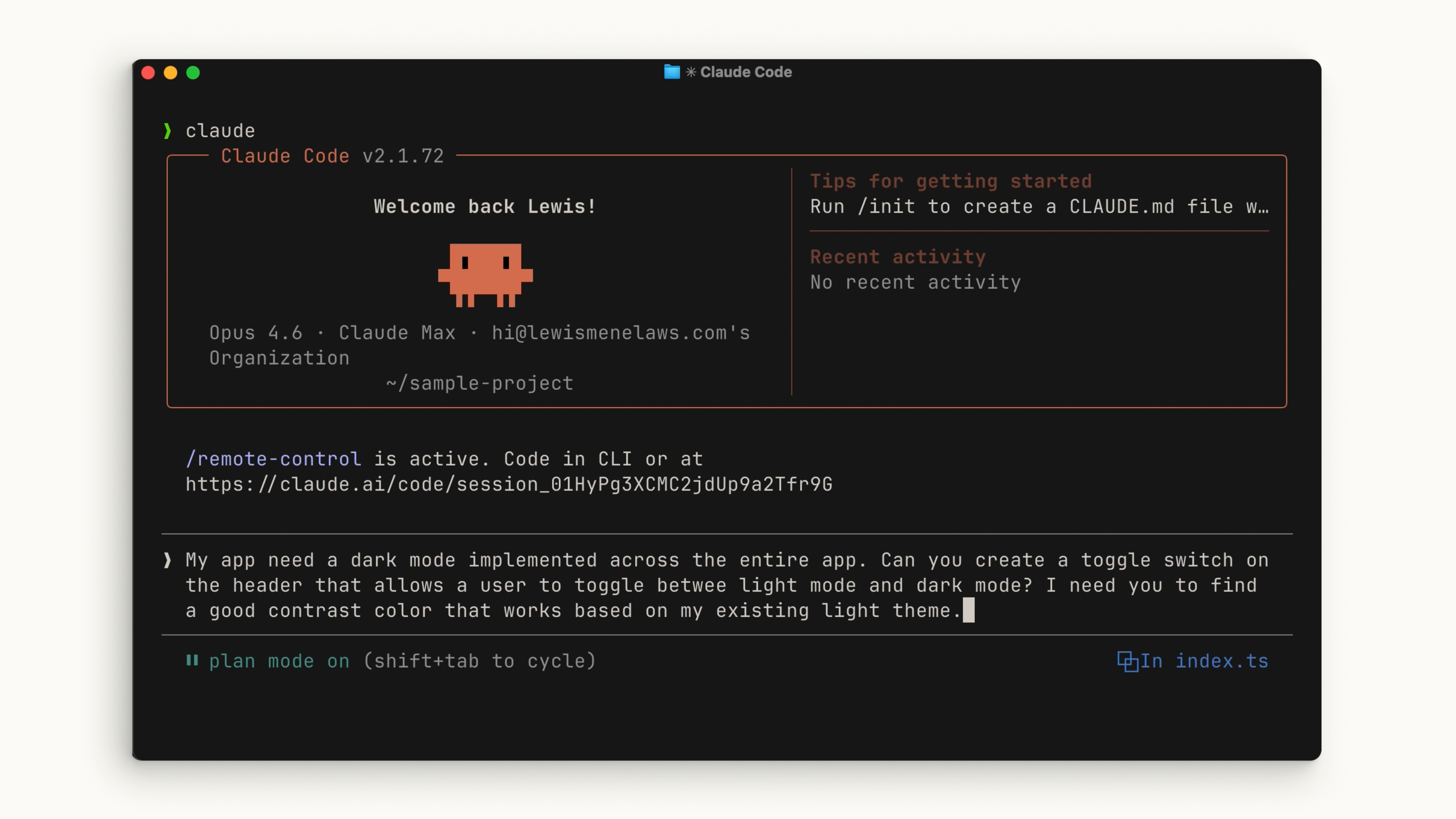
Within the Shift + Tab menu is Plan Mode. Plan mode takes your prompt and uses read-only tools to analyze your codebase and research your suggested implementation. It will ask clarifying questions along the way, then return a detailed plan it can execute.
Plan mode is great for planning complex changes or doing a safe code review. Many times you'll be asking Claude to handle multi-step implementations toward a feature, and this is exactly where Plan Mode excels.
Example: Add a Dark Mode Toggle
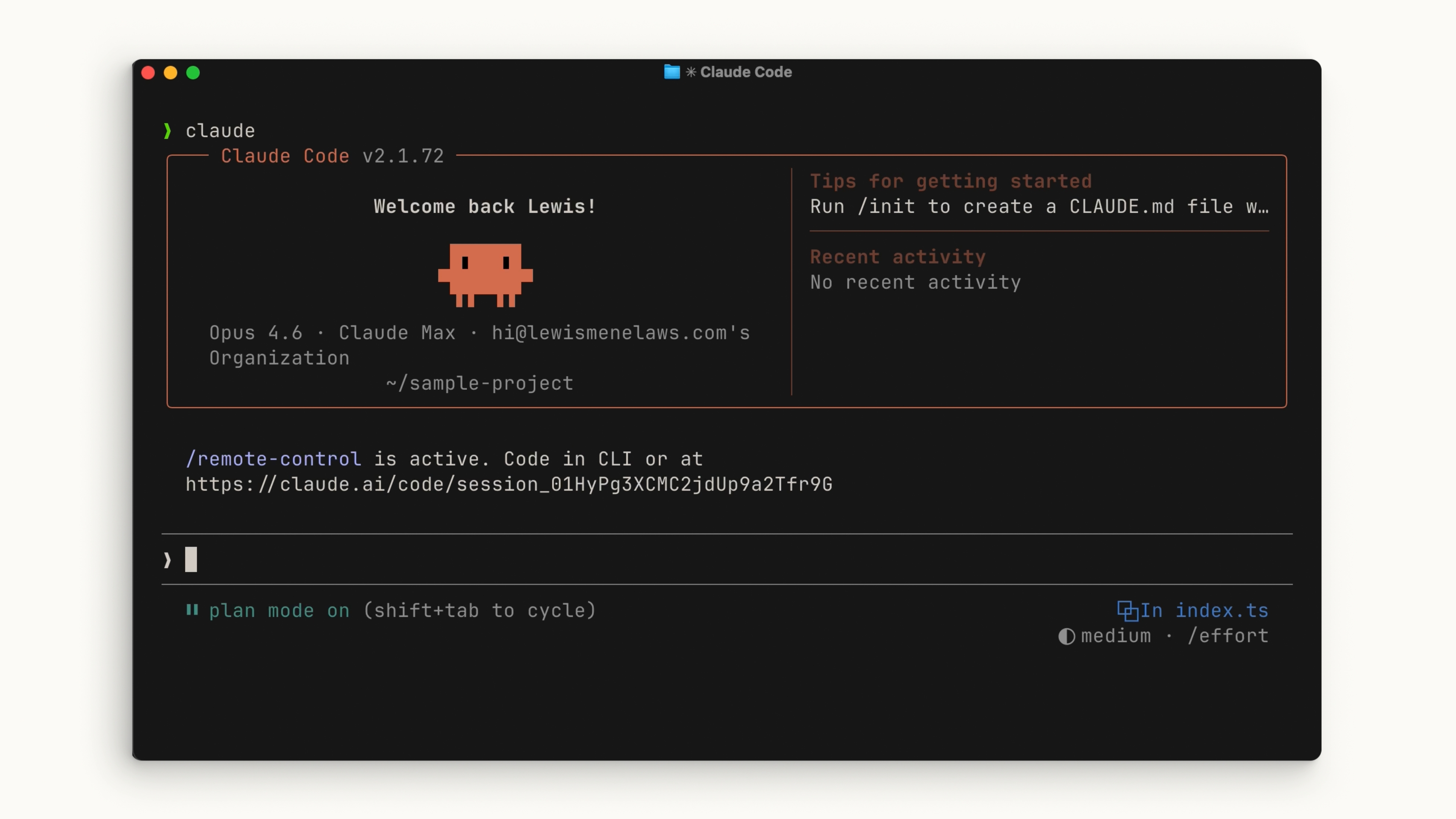
Let's walk through an example. Say you have an application that needs a dark mode toggle. Open the root directory of your project and run claude. Press Shift + Tab a couple of times to enter Plan Mode, then write a prompt like:
My app needs a dark mode implemented across the entire app. Can you create a toggle switch on the header that allows a user to toggle between light mode and dark mode? I need you to find a good contrast color that works based on my existing light theme.
Let Claude plan it out. After reviewing the plan, if it looks good, accept it and let Claude ask you for approval at each step. At the end, you can see exactly what Claude did and how it reached its conclusions.
Recap
When using Claude Code, try to be as descriptive as possible with your prompt. If you want to stay in the loop at every step, you can. Use Plan Mode to let Claude dig into the details of what you want to achieve before executing on any code.
🎬 Video transcript
Source video:
gbetp6D7J_Q
📜 Click to expand transcript (cleaned + AI-translated)
Interacting with Claude Code
You talk to Claude Code like you would talk to any AI assistant. When entering your prompt, there are several things you can consider that can both protect your codebase and make the process easier for you.
Interaction Modes: Auto-accept vs. Explicit Permission
You can choose whether Claude Code accepts every file change it suggests automatically or requires explicit permission each time. By pressing Shift + Tab, you can cycle between these modes.
- Auto-accept mode: Claude will automatically approve the editing or creation of a file, but it will still ask for your permission to run commands.
- Manual mode: Claude will ask for permission for every change.
There isn't a right or wrong way; it is simply based on whatever you feel most comfortable with.
Utilizing Plan Mode for Complex Tasks
Within the Shift + Tab menu is Plan mode. Plan mode takes your prompt and uses read-only tools to analyze your codebase and conduct research on your suggested implementation. During this phase, Claude may ask questions for clarification.
It then returns a detailed plan that it can execute in more depth. Plan mode works great for:
- Planning complex changes.
- Performing safe code reviews.
- Executing multi-step implementations for a specific feature.
Practical Example: Implementing Dark Mode
To demonstrate, let's implement a dark mode toggle in an application. Starting from the root directory of the project, hit Shift + Tab a couple of times to enter Plan mode and enter the following prompt:
"My app needs a dark mode implemented across the entire app. Can you create a toggle switch on the header that allows users to toggle between light mode and dark mode? I need you to find a good contrast color that works based on my existing light theme."
Claude will then plan the implementation. After reviewing the plan, you can see explicitly what Claude did and how it came to its conclusion. This ensures the dark mode implementation is consistent and functional.
Best Practices for Claude Code
When using Claude Code, try to be as descriptive as possible with your prompt. If you want to stay in the loop at every step, you can do that. Use Plan mode to let Claude get into the "nitty-gritty" of what you want to achieve before executing on that plan.
🔁 Related lessons
- Next: The explore → plan → code → commit workflow
- Previous: Installing Claude Code
- Same section: Installing Claude Code
- Part of paths: Path C
- Reference docs: Glossary · Skills atlas · By use-case
📚 Source & attribution
- Original Anthropic Academy lesson: https://anthropic.skilljar.com/claude-code-101/469791
- © 2025 Anthropic. Educational fair-use only.