📖 Lesson content
Video
Installing Claude Code
Claude Code is simple to install whether you want to use it in your terminal, on the web, or in your IDE.
Terminal
On macOS, Linux, or WSL, use the curl command to install it in one go. If you prefer Homebrew, you can also use brew install, but note that this method doesn't support auto-updates.
On Windows, there are a few options. In PowerShell, use the Invoke-RestMethod command. In CMD, use the curl command. There's also a winget command available, though like Homebrew, it won't auto-update.
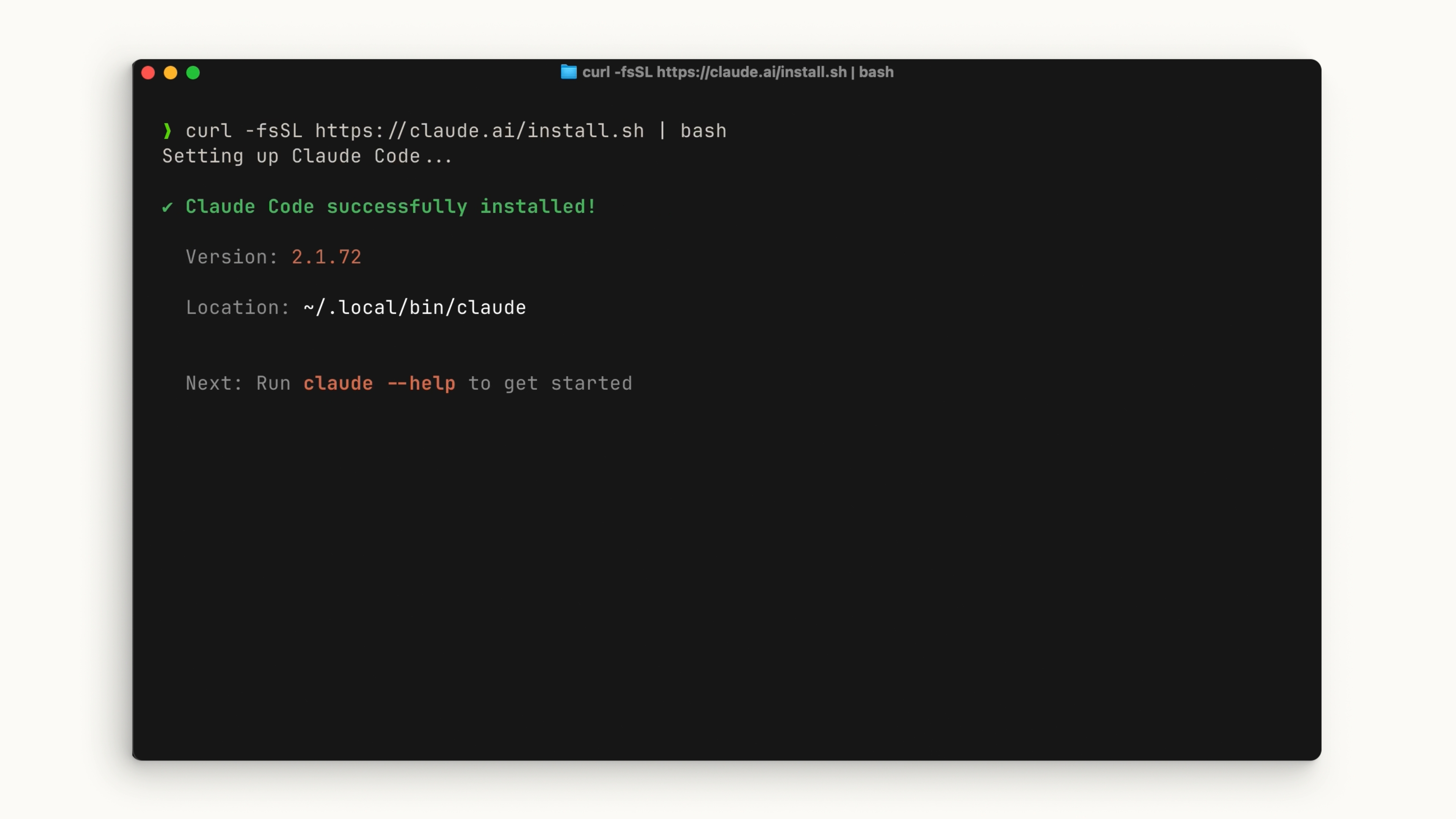
After installation, you should be able to run the claude command. If not, restart your terminal. Navigate to your project directory and run:
claude
You'll go through some initial setup steps like choosing your color theme and signing in with your Claude account (Pro, Max, or Enterprise) or using an API key. If your organization has a Claude Enterprise account, be sure to select that option. 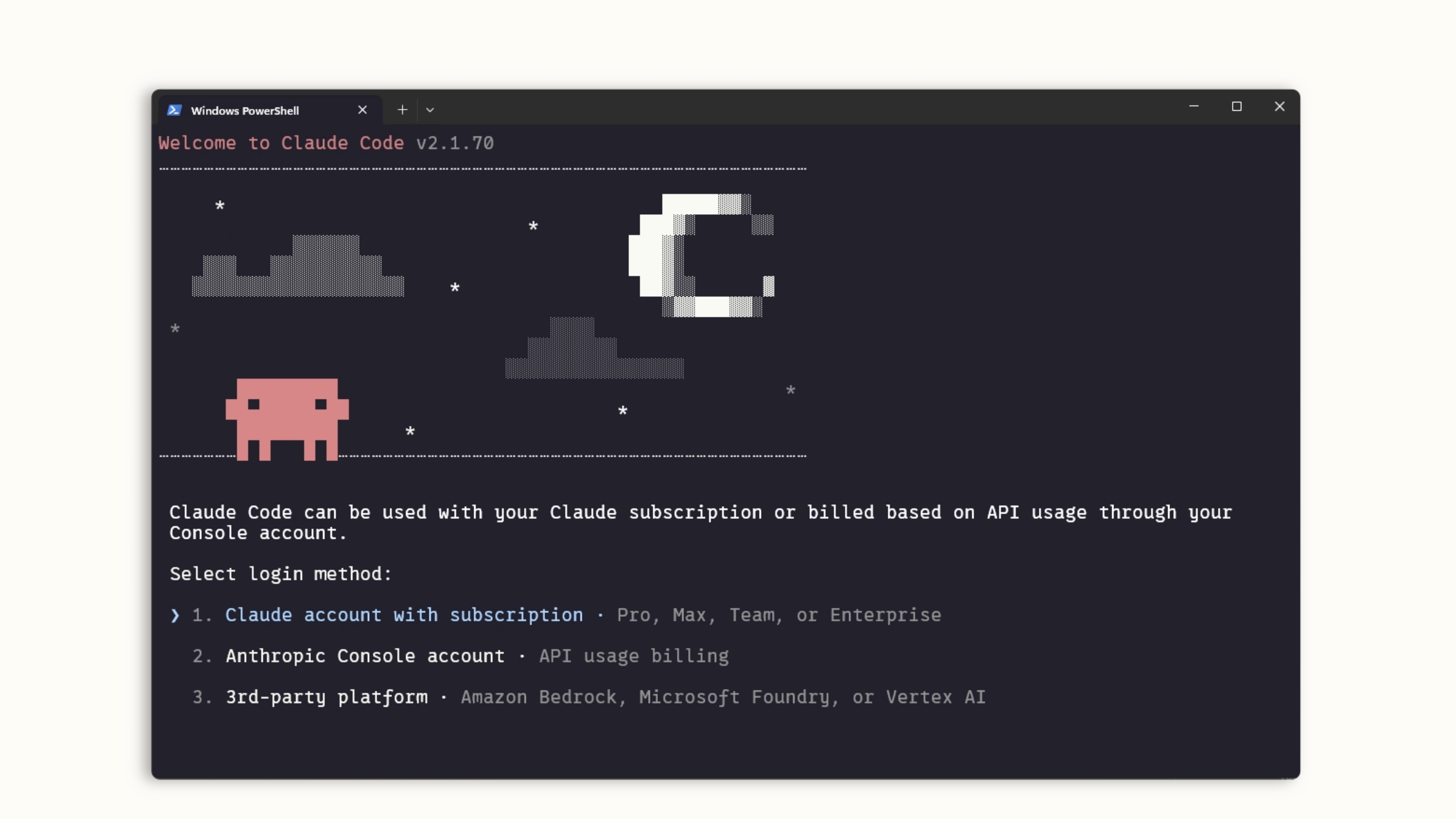
Whatever directory you run claude in, it will have access to that directory and all of its subfolders.
Visual Studio Code
Open your Extensions panel and search for "Claude Code." Look for the extension by Anthropic with the blue verification check. Hit install.
After installation, you may need to restart VS Code. Once it's running, open the command palette with Ctrl/Cmd + Shift + P and search for "Claude Code Open in New Tab." You can also click the Claude logo if it's visible in your sidebar.
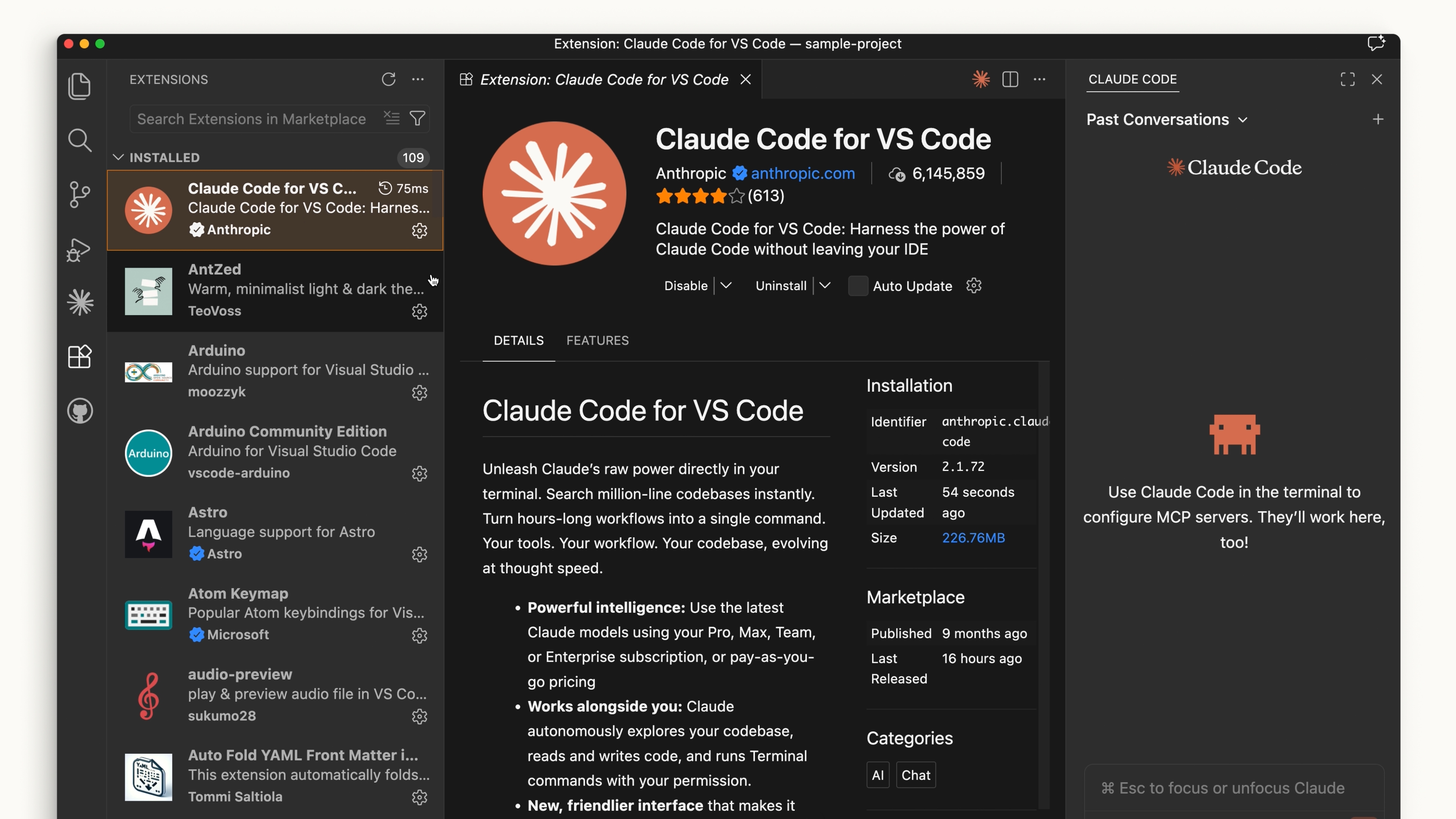
The VS Code extension provides a very similar experience to the terminal. You can also opt out of the UI and use the terminal experience directly in your settings.
JetBrains
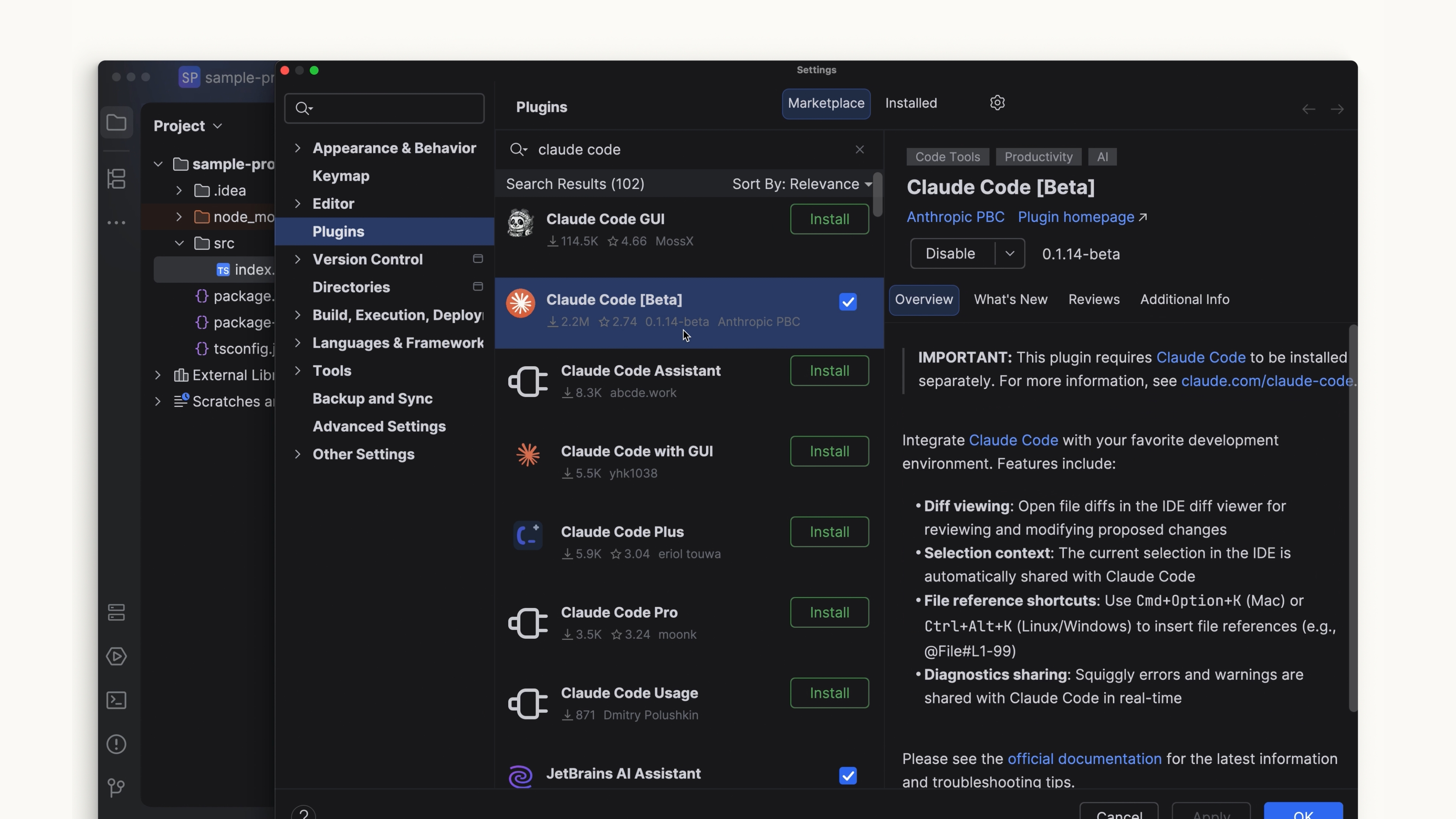
Install the Claude Code plugin from the JetBrains Marketplace. After installation, restart your IDE. When you reopen it, you'll see the Claude logo. Clicking it opens a pane with the terminal experience that works alongside your editor.
Desktop
After installing and signing into Claude Desktop, you'll see a toggle at the top labeled "Code." The look and feel is similar to the chat side of things, but it lets you work in a specific folder, change permissions, and even work in a cloud environment. 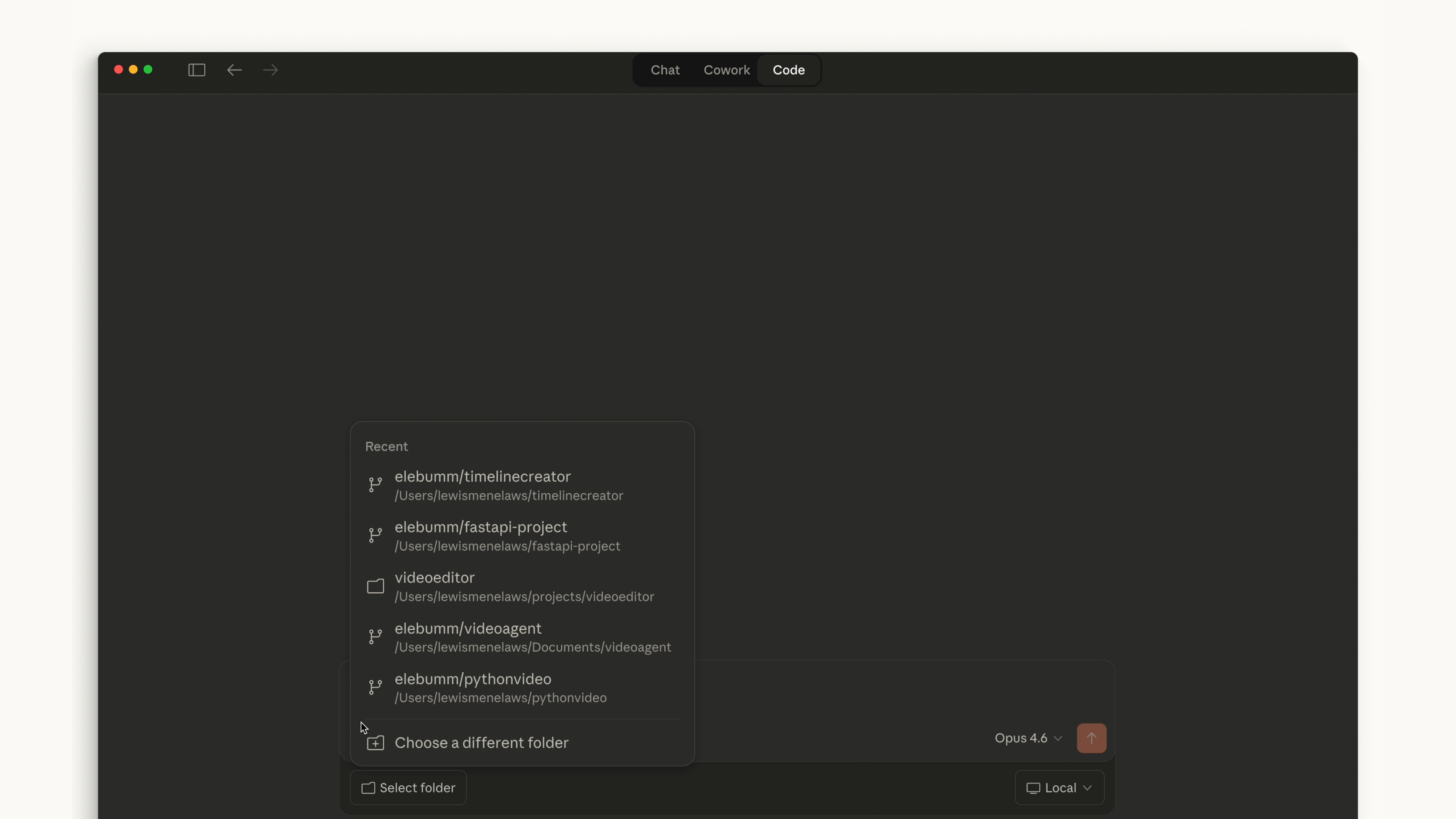
Web
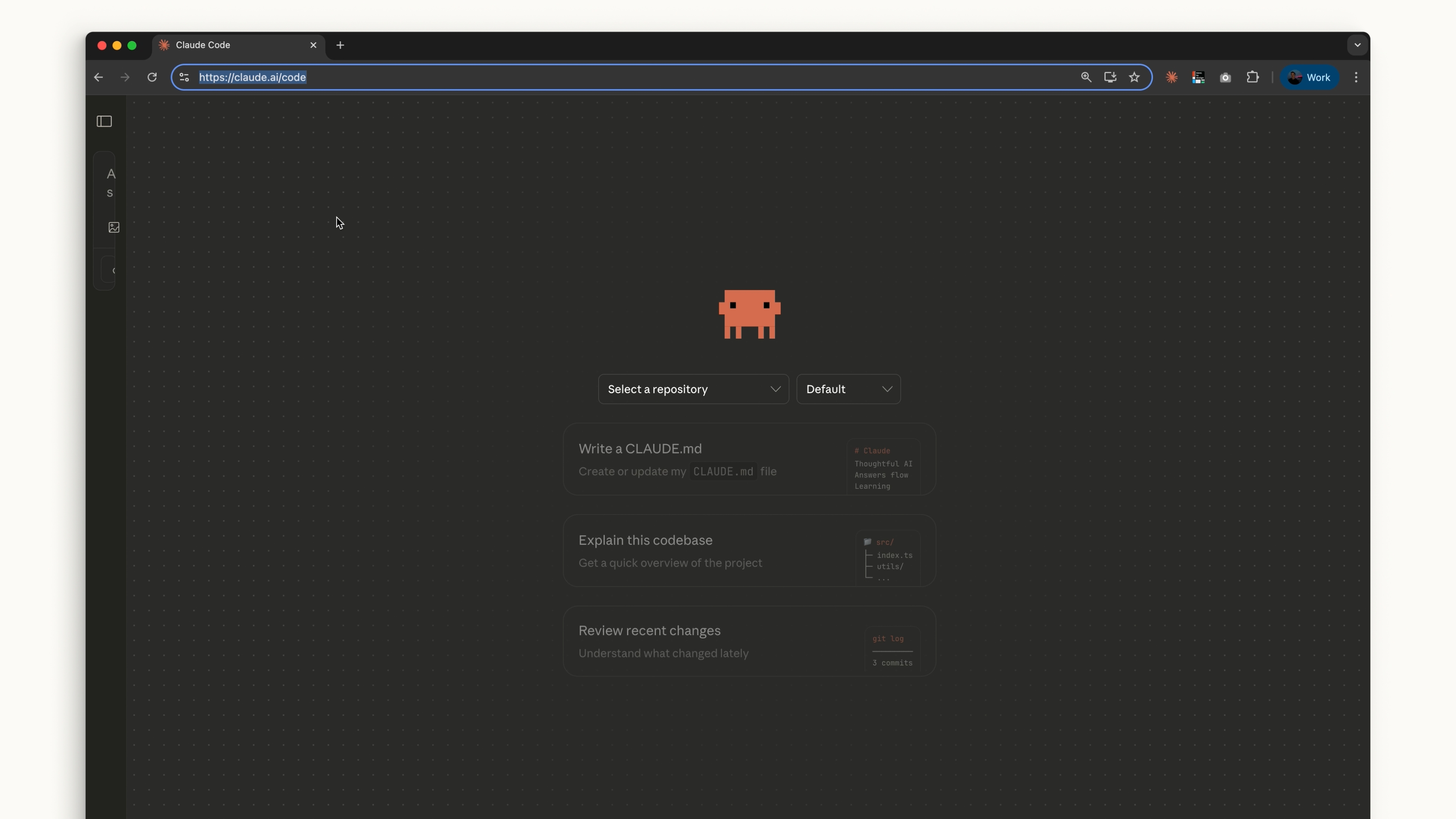
On the web, access Claude Code by going to claude.ai/code, or by clicking the "Code" label in the sidebar of the chat app. This works similarly to the desktop app, but you're restricted to GitHub repositories.
Which One Should I Use?
If you want to stay on the cutting edge, the terminal is your best bet — features ship there first. The IDE integrations offer a nearly identical experience if you prefer Claude Code to feel more intertwined with your code editor.
Desktop is great for letting Claude run in the background while you handle other tasks.
Claude Code on the web is a solid option if you want to remotely work on projects through a GitHub repository.
However you want to use Claude Code is up to you.
🎬 Video transcript
Source video:
0kILa02vKuI
📜 Click to expand transcript (cleaned + AI-translated)
Installation via Terminal
Claude Code is simple to install whether you want to use it in your terminal, the web, or your IDE.
- macOS, Linux, or WSL: Use the
curlcommand to install it in one go. - Homebrew: You can use
brew install, but note that this method does not have auto-update capabilities. - Windows:
- PowerShell: Use the
Invoke-RestMethodcommand. - CMD: You can use the
curlcommand. - winget: A
wingetcommand is also available, though like Homebrew, it will not auto-update.
- PowerShell: Use the
Initial Setup and Authentication
Once installed, navigate to your project directory and run claude. You will go through initial setup instructions, such as choosing your color theme and signing in with your Claude account (Pro, Team, or Enterprise). Alternatively, you can use an API key.
If your organization has a Claude Enterprise account, be sure to select that option. Whichever directory you decide to run Claude in, the agent will have access to that directory and all of its subfolders.
IDE Integrations
Visual Studio Code
In Visual Studio Code, open the extensions panel and search for "Claude Code". Look for the extension by Anthropic, ensure it has the blue checkmark, and hit install. After installation, you might need to restart VS Code.
To access it, open the Command Palette (Ctrl/Cmd + Shift + P) and search for "Claude Code: Open a new tab". You can also click the Claude logo when a file is open. If you prefer, you can opt out of the UI and use the terminal experience directly via your settings file.
JetBrains IDEs
For JetBrains IDEs, install the Claude Code plugin from the JetBrains Marketplace. After installation, restart your IDE. Upon reopening, the Claude logo will appear, opening a pane with the terminal experience that works alongside your code.
Claude Desktop and Web Access
Claude Desktop
You can run Claude Code directly within the Claude Desktop app. After signing in, you will see a toggle at the top labeled "Code". While the interface is similar to Claude Chat, this mode allows you to work in specific folders, manage permissions, and even operate in a cloud environment.
Web Interface
On the web, you can access Claude Code at claude.ai/code. This version functions similarly to the desktop app, but it is currently restricted to GitHub repositories only.
Choosing the Right Environment
The best way to use Claude Code depends on your workflow:
- Terminal: Best for those who want the latest features, as updates ship here the fastest.
- IDE Integrations: Ideal if you want Claude Code to feel intertwined with your primary editor.
- Desktop App: Great for letting Claude run in the background while you handle other tasks.
- Web: A strong option for working remotely on GitHub repositories or running multiple sessions in parallel.
🔁 Related lessons
- Next: Your first prompt
- Previous: How Claude Code works
- Same section: Your first prompt
- Part of paths: Path C
- Reference docs: Glossary · Skills atlas · By use-case
📚 Source & attribution
- Original Anthropic Academy lesson: https://anthropic.skilljar.com/claude-code-101/469790
- © 2025 Anthropic. Educational fair-use only.