📖 Lesson content
By the end of this lesson, you will be able to:
- Access Cowork and point it at a working folder
- Connect the tools and pages where your work lives
- Understand what you need to have in place
Estimated time: 7 minutes
What you need
Overview
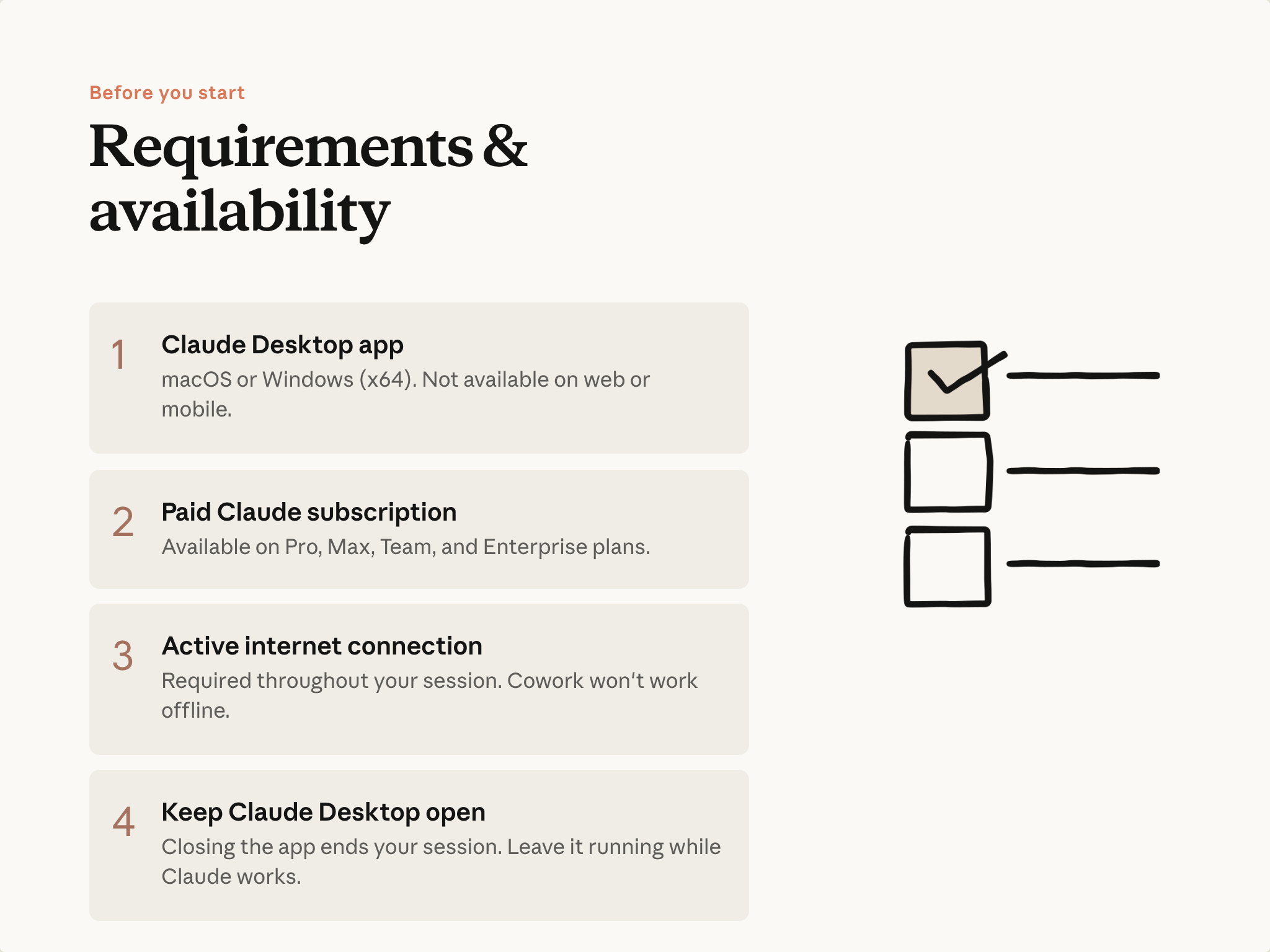
Cowork runs in the Claude Desktop app. It's available on paid Claude plans—check your plan details for current availability.
Opening Cowork
Overview
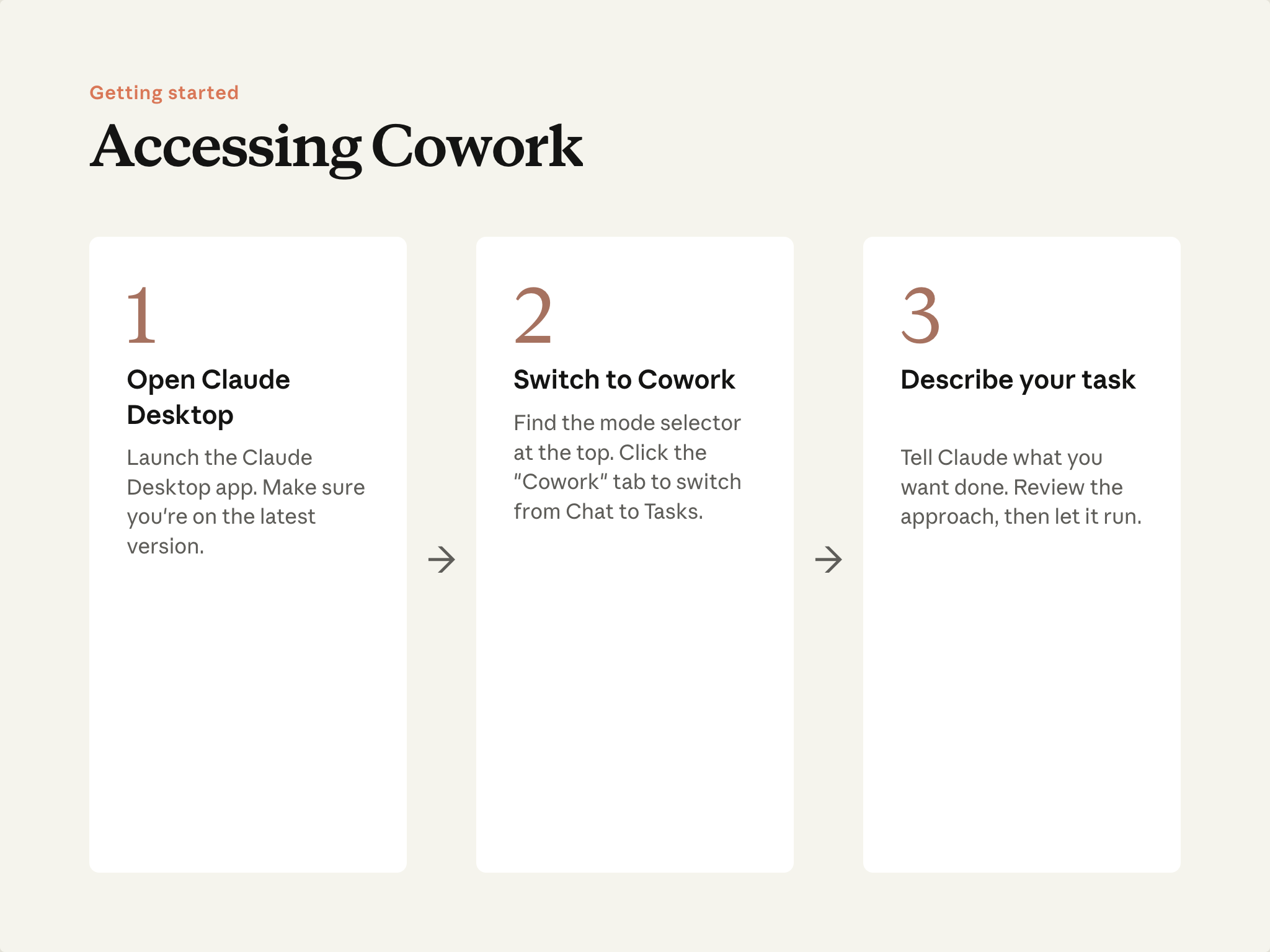
Open Claude Desktop. At the top of the app, you'll find a mode selector that lets you move between Chat, Cowork, and Code. Click Cowork.
If Cowork isn't visible as an option, check that you're on a paid plan and that the desktop app is up to date.
Point Claude at a folder
This is the key difference from chat: you give Claude a working directory, and it can read, create, and edit files there directly. No uploading, no downloading.
Click Work in a folder and select a directory on your computer. Claude reads every file inside (PDFs, spreadsheets, Word docs, whatever's there) and saves finished work back to the same place. It asks permission before making changes.
For work you'll come back to, a project wraps that folder with instructions and memory that carry across every session. That's Lesson 4.
Connect your tools
Connectors link Cowork to the services where your work lives—Slack, Google Drive, Gmail, Calendar, and others. You set these up once, and every task from then on can pull from them.
You'll find the list in Cowork's Customize area. Toggle on the tools you use. Once connected, you can reference them naturally in your prompts: "check what the team said in Slack about this" instead of copying the thread in. Claude can also act in connected tools—draft an email in Gmail, save a file to Drive.
Add Claude in Chrome
Some of your work lives on pages that don't have a connector—an internal dashboard, a vendor portal, a web app behind your login. Claude in Chrome is how Cowork reaches those. You install it from the same Customize area, grant permissions per site, and Cowork can open pages, read content, and interact with them as part of a task.
On its own, the extension is a sidebar assistant that reads your current tab. The automation happens when Cowork drives it. For a walkthrough, see the Chrome tutorial, or for the extension working alongside your local files, Build analysis from browser charts and folder data.
A folder is enough to start. Connectors and the Chrome extension are ready when you need them. Plugins and scheduled tasks come in later lessons.
Put it into practice
Open Claude Desktop, switch to Cowork, and point it at a folder you'd like to work with. You'll run your first task in the next lesson.
What's next
Next, you'll learn the core loop: describe what you want, answer any clarifying questions, let Claude work, and open your finished file.
For detailed setup help, see the Help Center: Getting started with Cowork. Team and Enterprise admins should also review Cowork for Team/Enterprise.
Feedback
Share your feedback here.
🔁 Related lessons
- Next: The task loop
- Previous: What is Cowork?
- Same section: What is Cowork?
- Part of paths: Path B
- Reference docs: Glossary · Skills atlas · By use-case
📚 Source & attribution
- Original Anthropic Academy lesson: https://anthropic.skilljar.com/introduction-to-claude-cowork/444165
- © 2025 Anthropic. Educational fair-use only.