📖 Lesson content
Video
Hooks
Hooks let you run commands at specific points in Claude Code's lifecycle. The key difference between hooks and everything else covered in this course is that hooks are deterministic — they always run.
Why Use Hooks
You can tell Claude in your CLAUDE.md to run Prettier after every file edit. Most of the time it will. But sometimes it won't. A hook makes it happen every single time, no exceptions.
Common use cases include:
- Auto-formatting after file edits
- Logging all executed commands for compliance
- Blocking dangerous operations like modifying production files
- Sending yourself notifications when Claude finishes a task
How They Work
Hooks are configured in your settings.json. You pick an event, optionally set a matcher for which tools it applies to, and provide a command to run. The available events are:
- PreToolUse — runs before a tool call
- PostToolUse — runs after a tool call completes
- UserPromptSubmit — runs when you submit a prompt, before Claude processes it
- Stop — runs when Claude finishes responding
- Notification — runs when Claude sends a notification
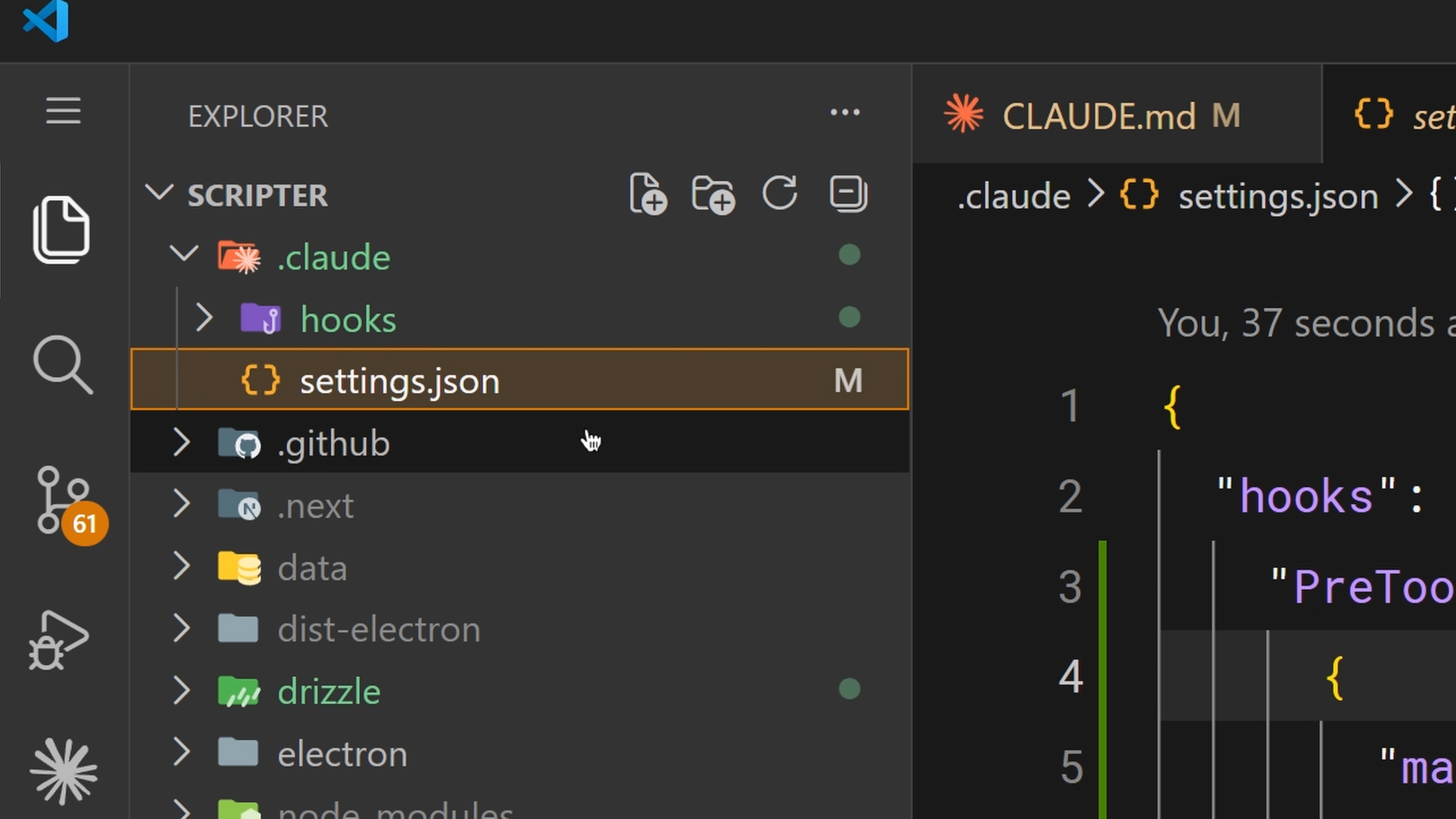
You configure them through the /hooks command inside Claude Code, or by editing settings.json directly.
A Practical Example
The most common hook: auto-formatting after edits. Set a PostToolUse hook with a matcher of "Edit|MultiEdit|Write" so it fires whenever Claude modifies a file. The command checks the file extension and runs the appropriate formatter — Prettier for TypeScript, gofmt for Go, whatever your project uses.
Blocking with PreToolUse
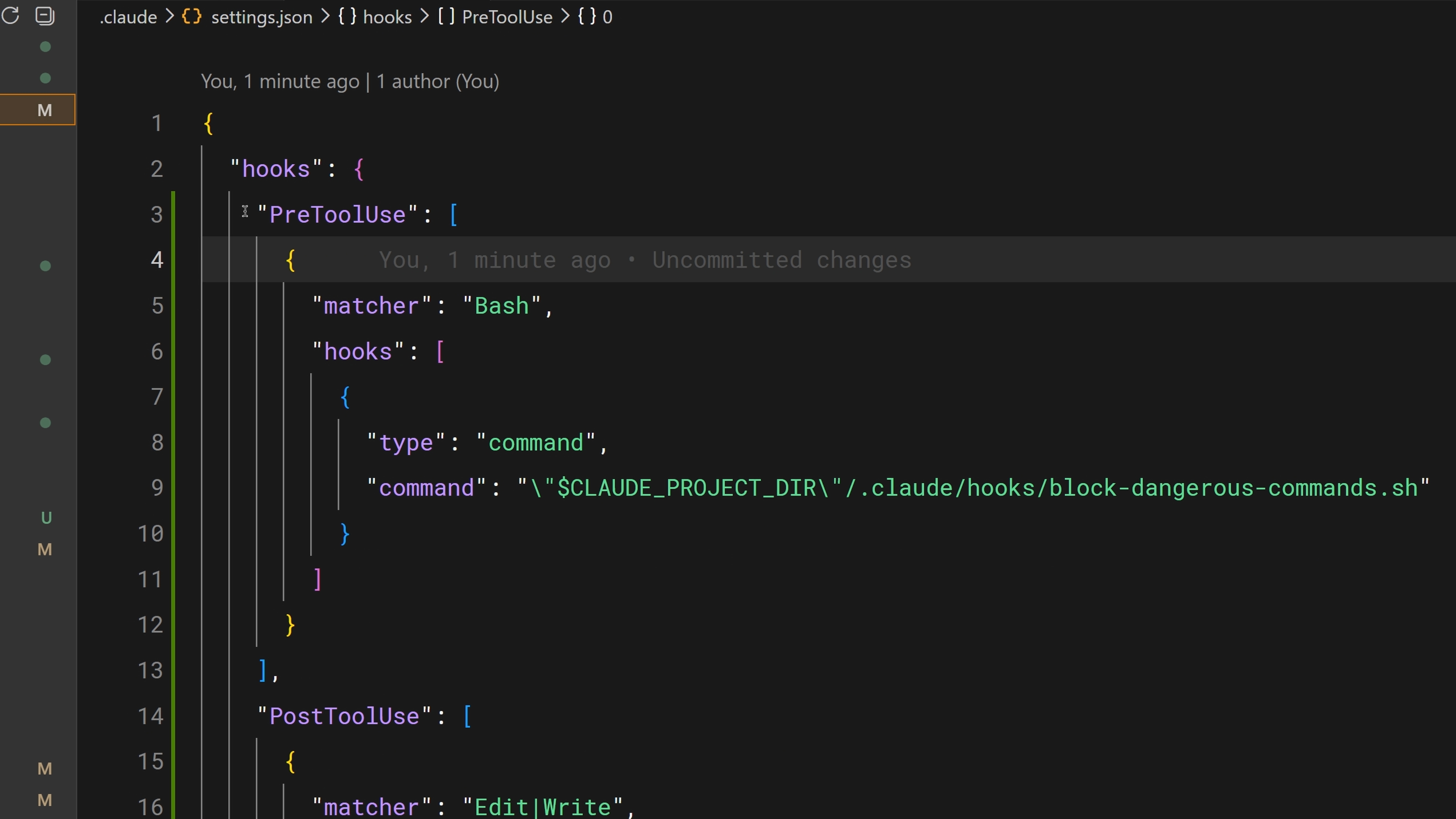
PreToolUse hooks can block tool calls before they execute. Your hook receives the tool name and input as JSON on stdin. The exit code determines the behavior:
- Exit code 0 — proceed normally.
- Exit code 2 — block the action. The stderr message gets fed back to Claude as feedback so it knows why it was blocked and can adjust.
- Any other exit code — a non-blocking error that gets shown to you but doesn't stop anything.
This is how you enforce hard rules. Block writes to a production config directory. Block bash commands that contain rm -rf. Block commits to main. Whatever your team needs to be guaranteed, not suggested.
Sharing Hooks with Your Team
Hooks configured in .claude/settings.json are project-level and can be checked into your repo. This means your entire team gets the same hooks automatically. Use the CLAUDE_PROJECT_DIR environment variable in your commands to reference scripts stored in your project, so they work regardless of Claude's current working directory.
Recap
Hooks give you deterministic control over Claude Code's behavior. Use PostToolUse for auto-formatting and logging. Use PreToolUse to block dangerous operations. Configure them with /hooks or in settings.json. And check them into your repo so your team gets them too.
If something needs to happen every time without fail, don't put it in a prompt. Put it in a hook.
🎬 Video transcript
Source video:
IkaPHiMDazM
📜 Click to expand transcript (cleaned + AI-translated)
Introduction to Hooks in Claude Code
Hooks let you run commands at different points in Claude Code's life cycle. The key difference between hooks and everything else we covered is that hooks are deterministic; they always run.
To put it this way: you can tell Claude in your claude.md file to run Prettier after every file edit, and most of the time it will do that, but sometimes it won't. It's not perfect. However, a hook makes it happen every single time with no exceptions.
Common use cases include:
- Auto-formatting after file edits.
- Logging all executed commands for compliance.
- Blocking dangerous operations like modifying production files.
- Sending yourself notifications when Claude finishes a task.
Configuring Hooks
Hooks are configured in your settings.json file. You pick an event, optionally set a matcher for which tools it applies to, and provide a command to run.
Available Hook Events
- user_prompt_submit: Runs when you submit a prompt, before Claude processes it.
- pre_tool_use: Runs before a tool call.
- post_tool_use: Runs after a tool call completes.
- notification: Runs when Claude sends a notification.
- stop: Runs when Claude finishes responding.
Common Use Case: Auto-formatting
The most common hook is auto-formatting after edits. You set a post_tool_use hook with a matcher of edit or multi_edit. This fires whenever Claude modifies a file.
The command checks the file extension and runs the appropriate formatter. This could be Prettier for TypeScript, gofmt for Go, or ruff for Python—whatever your project uses.
Safety and Blocking Operations
pre_tool_use hooks can block tool calls before they execute. Your hook receives a tool name and input JSON on stdin.
- Exit code 0: Means proceed.
- Exit code 2: Means the action is blocked.
If it exits with code 2, the stderr message gets fed back to Claude as feedback so Claude knows why it was blocked and can adjust. This is how you enforce hard rules:
- Block writes to a production config directory.
- Block bash commands that contain
rm -rf. - Block commits to the
mainbranch.
Hooks allow you to guarantee whatever constraints your team needs.
Project-Level Hooks and Team Collaboration
Hooks configured in .claude/settings.json are project-level and can be checked into your repo. This means that your entire team gets the same hooks automatically.
Use the CLAUDE_PROJECT_DIR environment variable in your commands to reference scripts stored in your project so they work regardless of Claude's current working directory.
Conclusion
Hooks give you deterministic control over Claude Code's behavior. Use post_tool_use for auto-formatting and logging, and use pre_tool_use to block dangerous operations. Configure them in the hooks section of your settings.json and check them into your repository so your team stays in sync. If something needs to happen every time without fail, don't put it in a prompt; put it in a hook.
🔁 Related lessons
- Next: Course quiz
- Previous: MCP
- Same section: The CLAUDE.md file · Subagents · Skills
- Part of paths: Path C
- Reference docs: Glossary · Skills atlas · By use-case
📚 Source & attribution
- Original Anthropic Academy lesson: https://anthropic.skilljar.com/claude-code-101/469798
- © 2025 Anthropic. Educational fair-use only.