📖 Lesson content
By the end of this lesson, you will be able to:
- Recognize and resolve common issues people encounter with Cowork
- Know what to do next: install, build, schedule, share
- Know where to go for help beyond this course
Estimated time: 10 minutes
Common issues and how to approach them
Overview
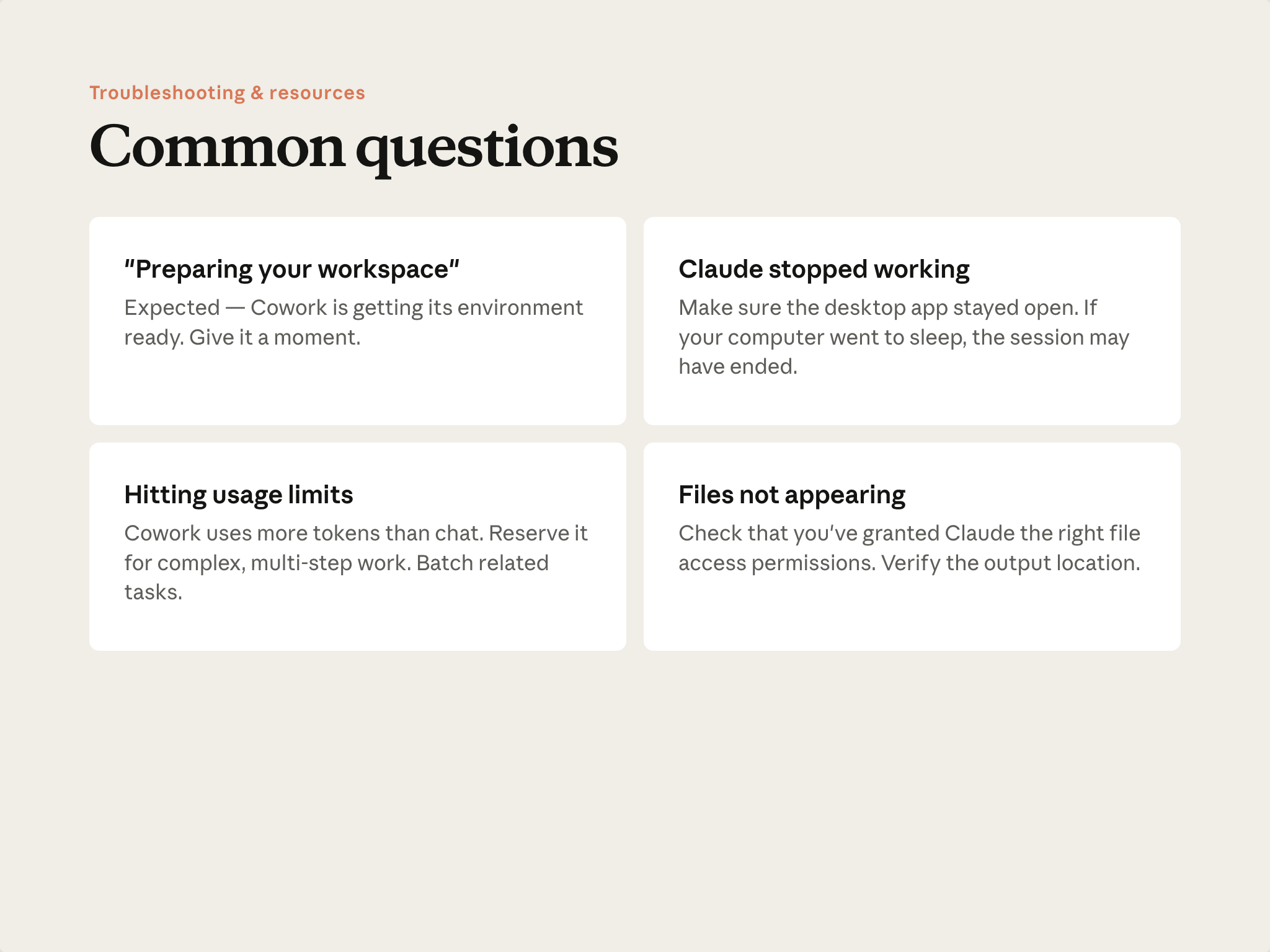
Cowork is preparing your workspace
Cowork is getting its environment ready before starting. This can take a little longer than a regular chat session starting up. Give it a moment—this is expected, particularly the first time or after an update.
A task stopped mid-run
The most common cause: the desktop app was quit mid-task. Sleeping the computer is fine—the session survives and picks back up when you wake it. Quitting the app pauses the task. Check that Claude Desktop is open; if it is, check your connection.
Running into usage limits
Cowork uses more allocation than chat, and long-running tasks on more capable models use the most. See Lesson 10: batch related work, use chat for tasks that fit it, match your model choice to what the task needs.
Can't find a file Cowork said it made
The output may have landed in a different folder than you expected, or the folder Cowork was pointed at wasn't the one you thought. Check the working folder Cowork was using. Verify folder access in settings. Ask Cowork directly where it wrote the file.
What to do next
Overview
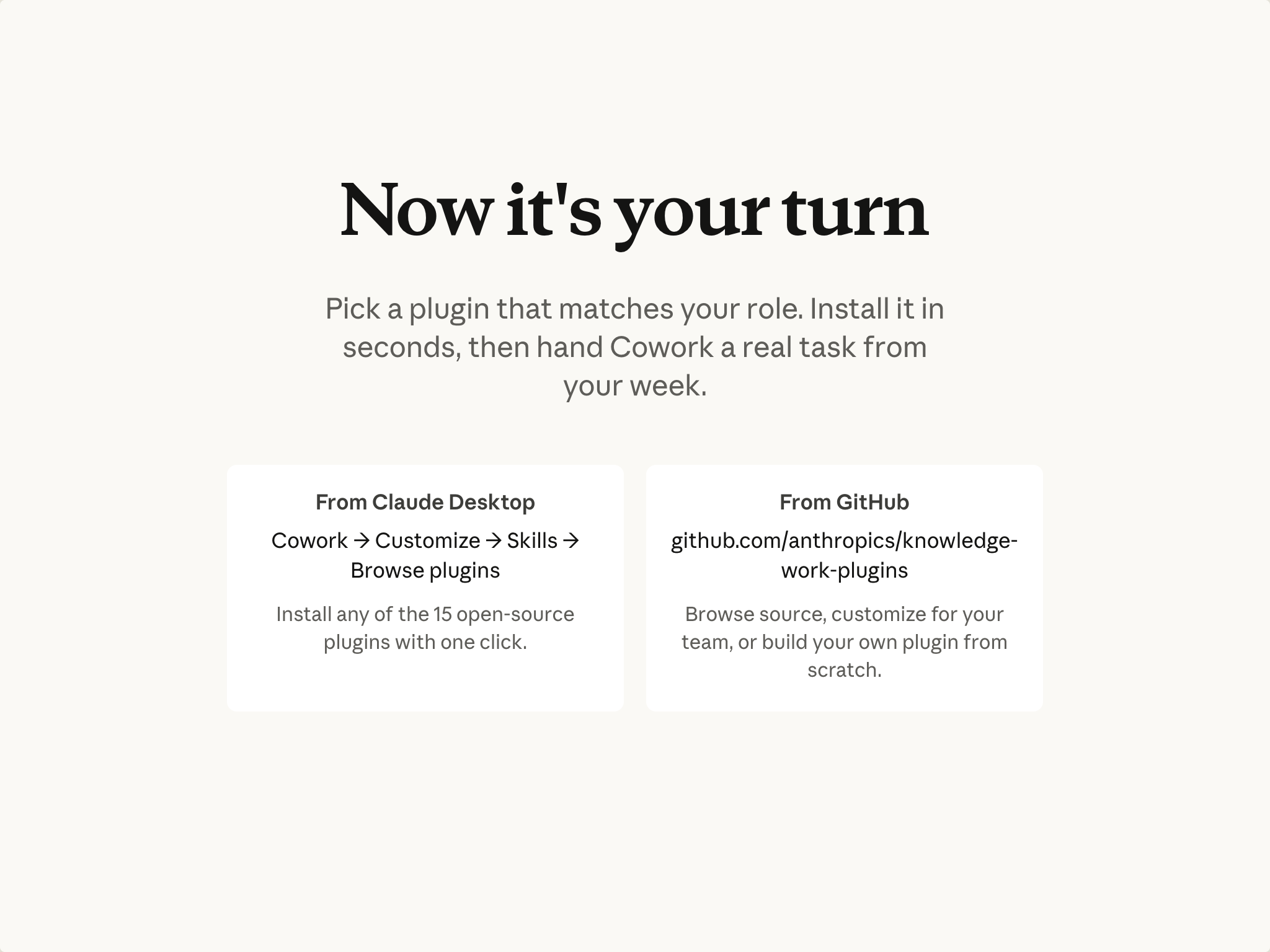
The goal: have a skill you trust running on a schedule. The steps to get there:
- Install a plugin. Browse the library, pick one that matches your role, install it. Open the plugin folder and read one of the skill files to see what a skill actually looks like.
- Run something real. Pick a task from your actual work—something that matters, even if it's small. What you're looking for: the moment you come back from doing something else and the finished file is there.
- Make a skill. If you produce branded output, build a brand-guidelines skill. Otherwise, the next time you run a task and realize you'll run it again, save that session as a skill.
- Schedule it. Put the skill on a schedule. If the app is closed when the task is due, it runs as soon as you reopen.
- Share it. Package the skill for a teammate, or on Team and Enterprise plans, talk to your admin about making it available more broadly.
Take these at whatever pace fits your work. The sequence matters more than the timing.
Where to go from here
- Setup and troubleshooting — Getting started with Cowork
- Task ideas — Cowork use-case gallery
- Plugin source and customization — github.com/anthropics/knowledge-work-plugins
- Building lasting habits for working with Claude — AI Fluency course
Lesson reflection
- What's the first real task you'll hand to Cowork?
- Which plugin matches what you do? Is it installed?
- What workflow—one you already run manually—would save you the most time if it ran on a schedule?
Congratulations
You've completed the Cowork end user training. You know how to describe a task, review a plan, let work run, and review the output. You know where Cowork fits in your work alongside chat. You know how to teach it something once so you don't have to explain it again.
Now pick something real and hand it over.
Feedback
We'd love to hear how you're using Cowork in your work. Share your feedback here.
🔁 Related lessons
- Next: Quiz on Claude Cowork
- Previous: Permissions, usage, & choosing your model
- Same section: Permissions, usage, & choosing your model
- Part of paths: Path B
- Reference docs: Glossary · Skills atlas · By use-case
📚 Source & attribution
- Original Anthropic Academy lesson: https://anthropic.skilljar.com/introduction-to-claude-cowork/444174
- © 2025 Anthropic. Educational fair-use only.