📖 Lesson content
By the end of this lesson, you will be able to:
- Describe the safety boundaries Cowork operates within
- Manage your usage allocation effectively
- Build the habit of reviewing outputs before acting on them
Estimated time: 10 minutes
Permissions and safety
Overview
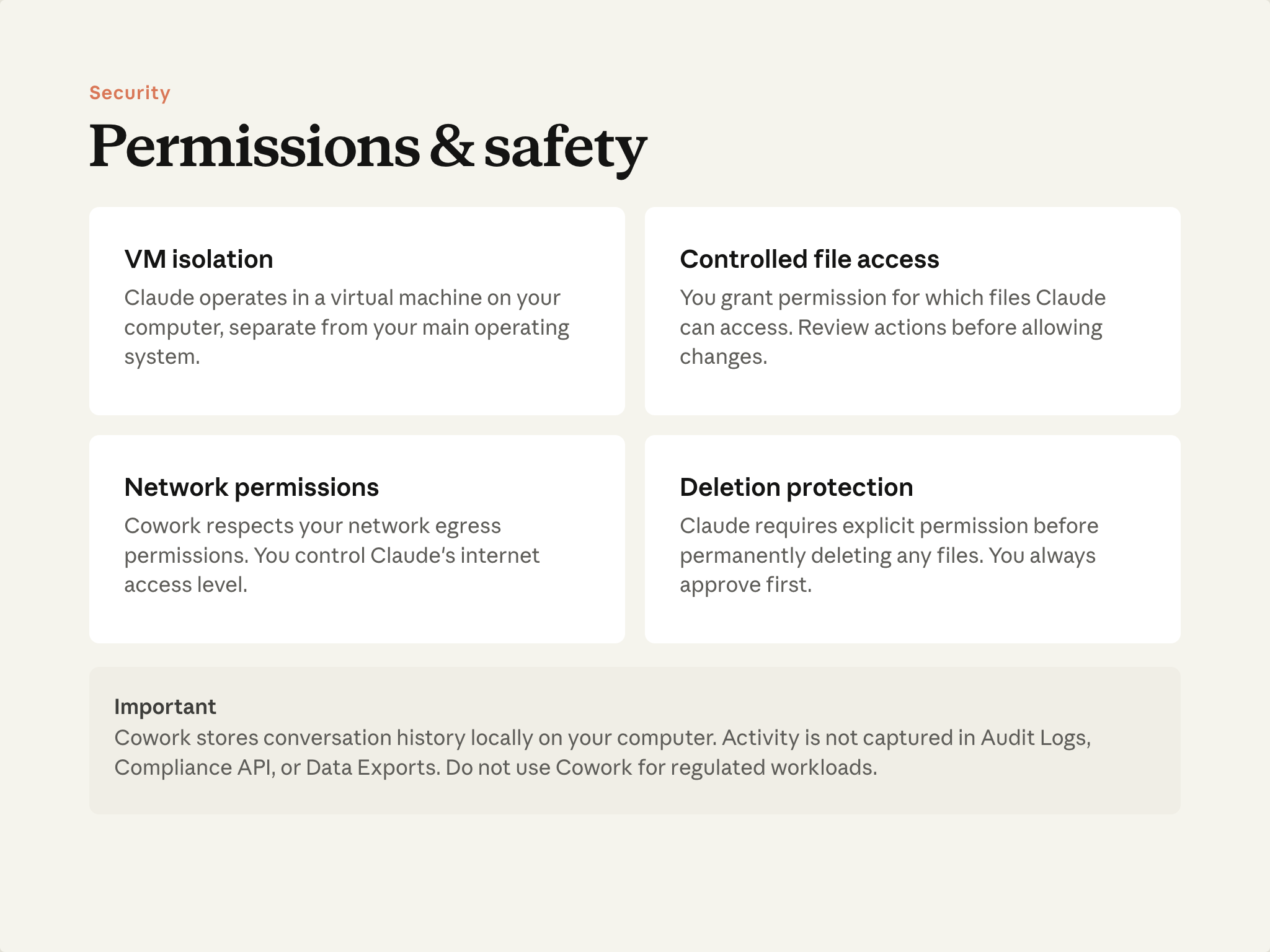
Cowork can read and write real files and connect to real systems. Here are the boundaries that shape how that works.
- Isolated execution — Work runs in an isolated environment on your computer, separate from your operating system. Cowork can't reach what it hasn't been granted.
- Controlled file access — You decide which folders Cowork can see. No grant, no access.
- Network policies respected — Cowork follows your organization's network rules. Restricted environments stay restricted.
- Deletion is gated — Permanent deletion requires your explicit approval. You'll always see a prompt first.
One thing worth knowing up front
Cowork conversation history is stored locally on your machine. Check your plan's documentation for current details on audit logging and compliance features—particularly if you have workloads with regulatory requirements.
Reviewing what Cowork did
Before you send an output onward or act on a result, review it. The more polished an output looks, the more a second look is worth—Cowork's confidence is the same whether the work is right or wrong. Your review catches the difference.
The habit: open the file. Check a number. Follow one thread of reasoning.
For more on this habit and the other competencies that make working with AI effective, see the AI Fluency course.
Managing usage
Overview
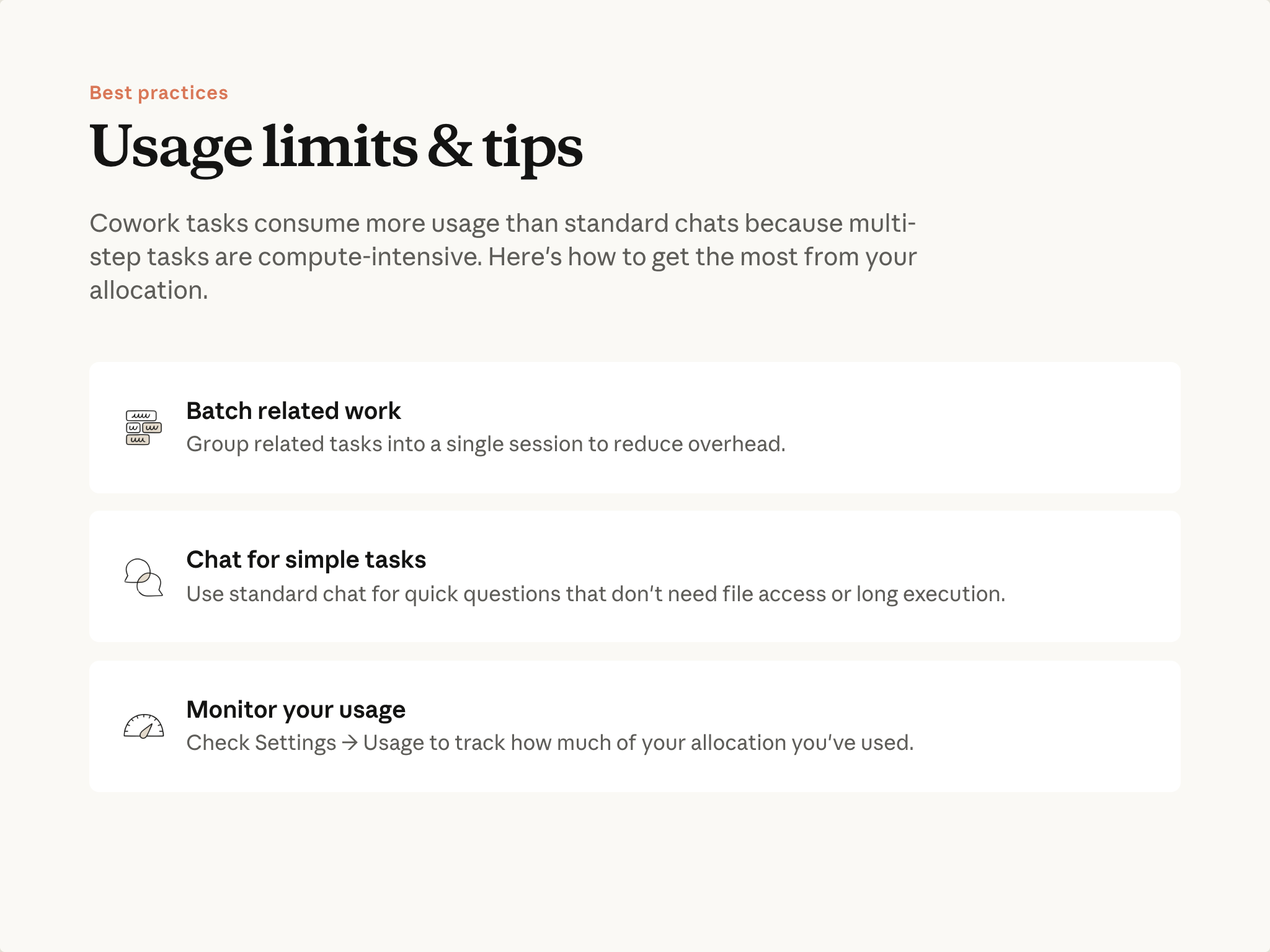
Cowork uses more of your allocation than chat does—multi-step, long-running work is more compute-intensive than a single turn. A few habits help you spend it well:
- Batch related work. Starting a fresh session has overhead. If you have several related tasks, do them in one session rather than separate ones.
- Use chat for tasks that fit it. If a task doesn't need your files, your connected tools, or a real output file, chat is often faster and less resource-intensive. The question from Lesson 1—does this need my files, tools, or a real output?—is also a good usage question.
- Monitor where you stand. Cowork's settings include usage visibility. Check in periodically, especially as you're building habits.
Choosing the right model
Which model you use also affects consumption. Claude models come in three capability tiers—Opus, Sonnet, and Haiku—and they trade off capability against cost. Opus handles the most complex multi-step work and uses the most allocation. Haiku is the quickest and lightest. Sonnet sits in the middle as a sensible default for everyday tasks.
Match the model to what the task needs rather than defaulting to the highest option for everything.
For more on how the tiers differ and when each one fits, see Choosing the right Claude model. For how usage and allocation work across plans, see plans and pricing.
Lesson reflection
- Do you have any workflow where the audit and compliance characteristics of Cowork matter? If so, check your plan's current documentation.
- Are you running tasks in Cowork that would fit just as well in chat? That's an easy place to save allocation.
- When did you last open a Cowork output and actually check something in it before sending it onward?
What's next
The final lesson: quick troubleshooting for common issues, and the sequence of next steps to build on what you've learned.
Feedback
Share your feedback here.
🔁 Related lessons
- Next: Troubleshooting & next steps
- Previous: Research & analysis at scale
- Same section: Troubleshooting & next steps
- Part of paths: Path B
- Reference docs: Glossary · Skills atlas · By use-case
📚 Source & attribution
- Original Anthropic Academy lesson: https://anthropic.skilljar.com/introduction-to-claude-cowork/444173
- © 2025 Anthropic. Educational fair-use only.