📖 Lesson content
By the end of this lesson, you will be able to:
- Explain what a plugin is and what's inside it
- Install a plugin that matches your role
- Understand skills as the building blocks plugins are made of
Estimated time: 15 minutes
What a plugin is
Overview
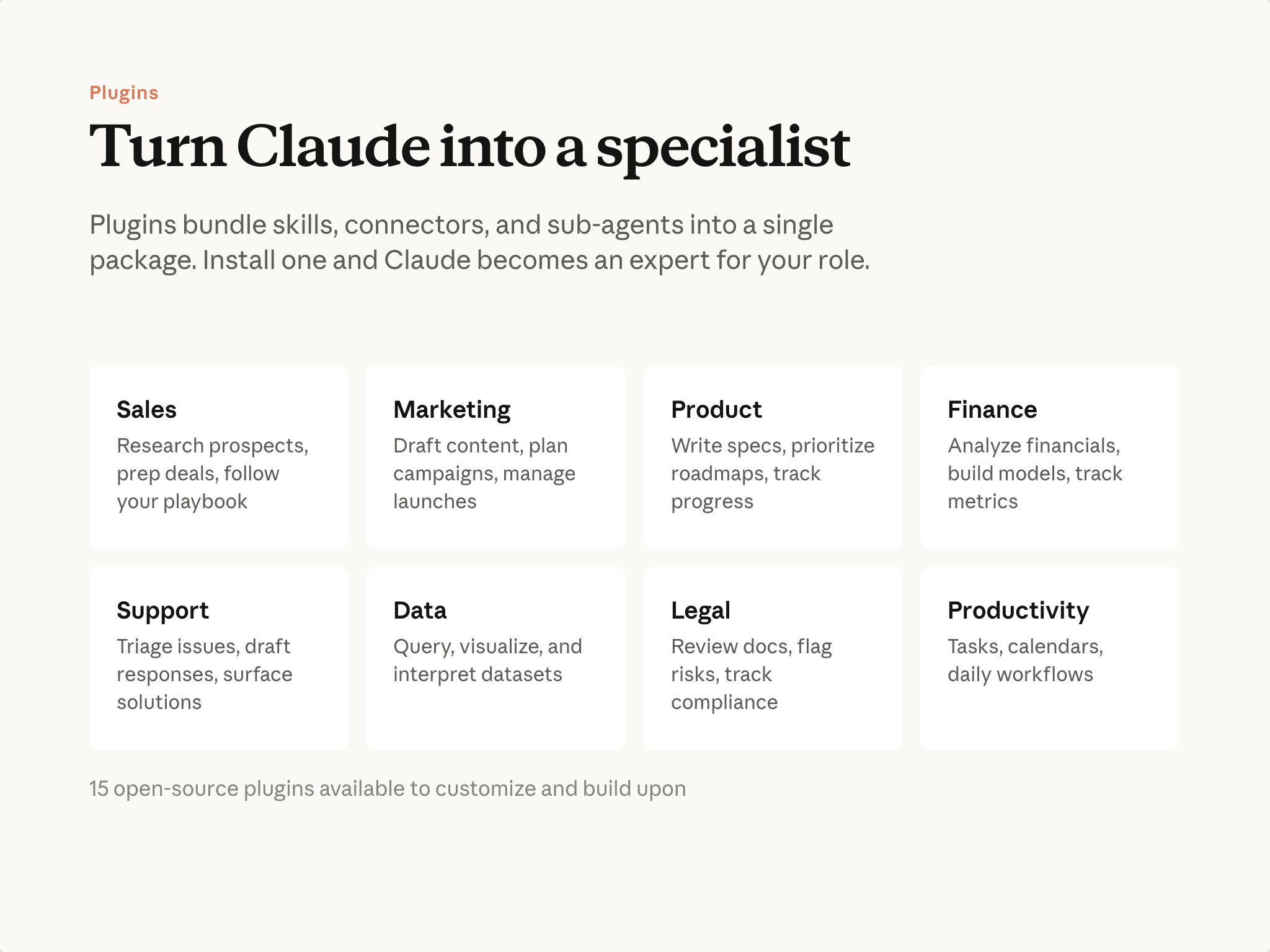
Plugins give Cowork domain expertise. Each one comes with built-in knowledge and workflows for a specific function, so Claude approaches your task the way a specialist would.
A plugin is a bundle—several pieces packaged together for a role or domain:
- Skills — Instructions for handling specific workflows. Claude draws on them automatically, or you invoke them with
/in the prompt. Example: how to structure a deal brief,/prep-call,/weekly-report. - Connectors — Reach the systems where the work happens. Example: your CRM, your docs, your messaging.
- Subagents — Parallelize specialized work. Example: one agent per account in a book-wide review.
Open-source plugins are available for most knowledge-work roles: sales, marketing, product, finance, legal, operations, customer support, data, and more. They work as-is and can be modified.
Installing a plugin
Overview
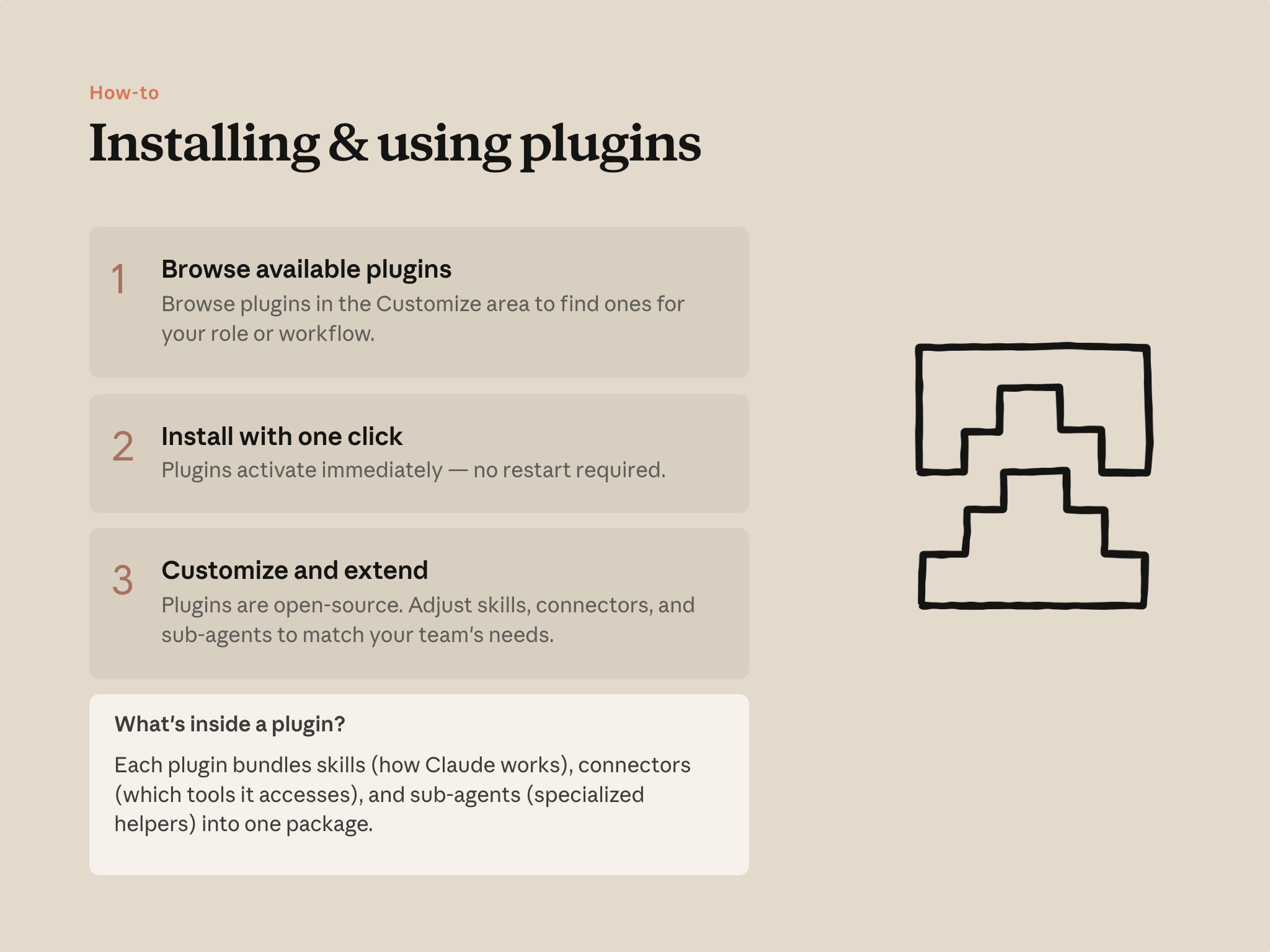
- Browse. Plugins live in Cowork's Customize area. Find one that matches what you do.
- Install. One click. The plugin is active immediately.
- Customize. Once installed, the plugin is a folder on your machine. Everything in it is readable and editable.
What's inside
A plugin is just a folder. The structure looks something like this:
sales-plugin/ ├── plugin.json ← manifest: name, description, dependencies ├── skills/ │ ├── deal-brief/ ← how to structure a deal brief │ ├── territory/ ← how to build a territory report │ └── prep-call/ ← /prep-call in the slash menu └── agents/ └── account-sweep.md ← subagent for per-account work
Every file is plain text. To change how a skill works, open its file and edit it. To add a new skill, add a folder under skills. There's no build step—Cowork reads the folder directly.
About skills
You'll notice skills show up a lot—they're the core building block inside plugins. A skill is a markdown file that teaches Claude how to handle one thing: a workflow, a format, a process.
Skills aren't specific to Cowork. They work across Claude's surfaces—in chat, in Claude Code, anywhere Claude runs. A plugin is the Cowork-specific way of bundling skills with the connectors they need to do a job.
If you want to go deeper on skills specifically:
- Skills video course on YouTube — six-part walkthrough
- What are Skills — Help Center reference
- Teach Claude your way of working — tutorial on encoding your own processes
- Introduction to Agent Skills — full course
Put it into practice
- Open Cowork's Customize area and browse plugins.
- Install the plugin closest to your role.
- Find the installed plugin folder and open one of the skill files. See that it's readable text, written the way you'd brief a teammate.
Learn more about plugins
- Plugin directory — browse all plugins, Anthropic and community-built
- Use plugins in Cowork — Help Center guide to installing and setup
- How to customize plugins in Cowork
- Build a plugin from scratch
- Cowork plugins announcement
- Knowledge-work plugins on GitHub
- Financial-services plugins on GitHub
What's next
Next: scheduled tasks. Once you have a task that works well—whether it's a plugin skill or a prompt you wrote—you can set it to run on a schedule without prompting each time.
Feedback
Share your feedback here.
🎬 Video transcript
Source video:
bjdBVZa66oU
📜 Click to expand transcript (cleaned + AI-translated)
Introduction to Claude Skills
Every time you explain your team's coding standards to Claude, you're repeating yourself. Whether it is redescribing how you want PR review feedback structured or reminding Claude of your preferred commit message format, these repetitive tasks can be streamlined.
Skills fix this problem. A skill is a Markdown file that teaches Claude how to do something once, allowing Claude to apply that knowledge automatically whenever it is relevant.
How Skills Work
Agent skills are folders containing instructions, scripts, and resources that Claude can discover and use to perform tasks more accurately and efficiently. In Claude Code, this is implemented via the skill.md file.
The Selection Process
The description within the skill.md file is how Claude decides whether to use a specific skill. When you ask Claude to review a PR, it matches your request against all available skill descriptions and activates the ones that match. This ensures that Claude only pulls in the relevant information for the task at hand.
Storage and Scope
You can store skills in different locations depending on who needs access to them:
Personal Skills
Personal skills are stored in the ~/.claude/skills directory. these follow you across all your projects and are ideal for individual preferences, such as:
- Your specific commit message style.
- Your preferred documentation format.
- How you personally like code to be explained.
Project Skills
Project skills are stored in the .claude/skills directory inside the root of your repository. Anyone who clones the repository gets these skills automatically. This is the ideal place for team standards, such as:
- Company brand guidelines.
- Preferred fonts and color palettes for web design.
- Shared coding conventions.
Skills vs. Other Customization Methods
Claude Code offers several ways to customize behavior, but skills are unique because they are automatic and task-specific.
Claude.md vs. Skills
- claude.md: These files load into every single conversation. If you want Claude to always use TypeScript strict mode, that belongs in your
claude.mdfile. - Skills: These load on demand. Claude only scans the name and description initially, so it doesn't fill up your entire context window. For example, your PR review checklist doesn't need to be in the context while you are debugging; it only loads when you actually ask for a review.
Slash Commands vs. Skills
- Slash Commands: These require you to manually type them to trigger an action.
- Skills: These do not require manual triggering. Claude applies them automatically when it recognizes the situation.
Best Use Cases for Skills
Skills work best for specialized knowledge that applies to specific tasks. If you find yourself explaining the same thing to Claude repeatedly, that is a skill waiting to be written. Common use cases include:
- Code review standards followed by your team.
- Specific commit message formats.
- Organizational brand guidelines.
🔁 Related lessons
- Next: Scheduled tasks
- Previous: Giving Cowork context
- Same section: Scheduled tasks
- Part of paths: Path B
- Reference docs: Glossary · Skills atlas · By use-case
📚 Source & attribution
- Original Anthropic Academy lesson: https://anthropic.skilljar.com/introduction-to-claude-cowork/444168
- © 2025 Anthropic. Educational fair-use only.