📖 Lesson content
By the end of this lesson, you will be able to:
- Give Cowork context that carries across every session, without re-explaining each time
- Use a project's Instructions panel to tell Claude how to work
- Set global instructions for preferences that apply everywhere
Estimated time: 10 minutes
Why this matters
Overview
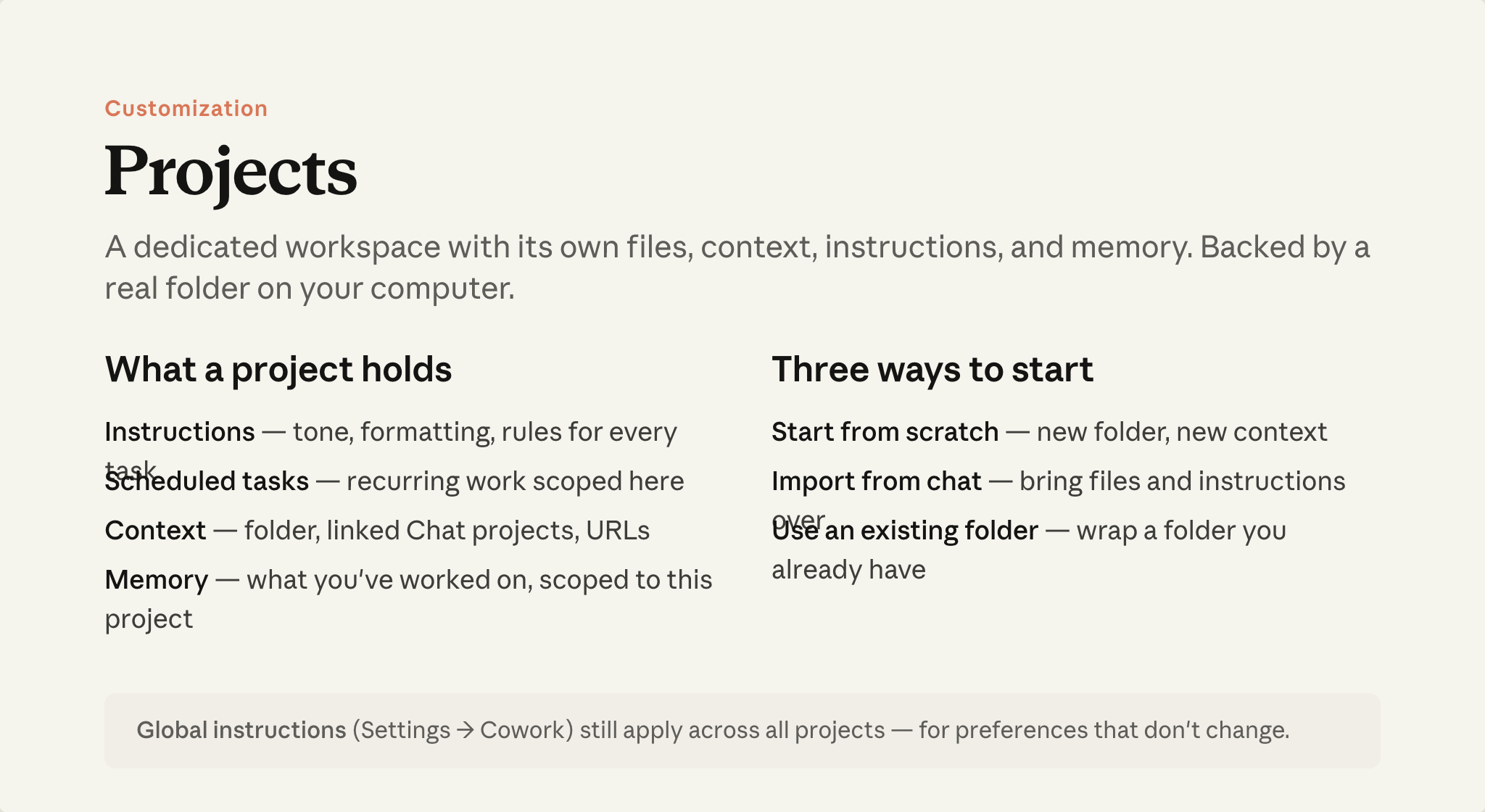
Each Cowork task starts fresh—Claude doesn't carry conversation memory from one task to the next. The way context carries over is a project: a named workspace backed by a real folder on your machine, with instructions and memory that persist into every task you start inside it.
If you use projects in Chat, Cowork projects work similarly—but they live locally on your computer and are built around tasks. The memory is scoped differently too: Chat remembers across all your conversations; a Cowork project's memory stays inside that project.
Projects live in Cowork's sidebar. You can start one from scratch, import from a Chat project (files and instructions come over, sync stays one-way), or wrap a folder you already have on your machine. Full setup guide.
What goes in Instructions
Once you're in a project, the right-hand panel has an Instructions section. What you put there is read in every task you start from that project. Some things that tend to be useful:
- Who's involved — names, roles, how to reach them, so "send this to Rachel" means something
- Where things live — "contracts are in ./Contracts, old reports in Drive /archive/[year]"
- Output preferences — "drafts go in .docx, finals in PDF, save to the deliverables subfolder"
- Project-specific rules — "metric units throughout, cite the source for every number"
It doesn't need to be polished. A few lines is enough. The effect: shorthand starts working. Once Instructions says who's who and where things are, "send this to the client" and "file it where the Q3 report went" mean specific things.
Claude also reads everything in your project folder. For context you want Claude to maintain—running notes, a growing glossary, anything that evolves—put it in a file there. "Add what we just covered to my notes file" works on files; the Instructions panel is yours to set.
Global instructions
For preferences that don't change between projects—your role, default output formats, standing rules like "ask before deleting"—use global instructions. Set them in Settings → Cowork → Global Instructions. These apply to every Cowork task, inside a project or not.
Check it's working
From inside your project, ask: "Tell me what you know about how I work here." You'll see whether Instructions and memory are being picked up, and what's missing.
Put it into practice
Create a project for something you're actively working on—use an existing folder if you have one. Add a few lines to Instructions: who the key people are, where related files live, one output preference. Start a task inside it and notice the folder already set in the input bar.
What's next
In the next module, you'll learn how plugins add domain expertise to Cowork—so it approaches your task the way a specialist in your function would.
Feedback
Share your feedback here.
🔁 Related lessons
- Next: Plugins: Cowork as a specialist
- Previous: The task loop
- Same section: The task loop
- Part of paths: Path B
- Reference docs: Glossary · Skills atlas · By use-case
📚 Source & attribution
- Original Anthropic Academy lesson: https://anthropic.skilljar.com/introduction-to-claude-cowork/444167
- © 2025 Anthropic. Educational fair-use only.