📖 Lesson content
Video
Context Management
Context is Claude's working memory. Every file it reads, every command it runs, every message you send — it all takes up space in the context window.
What is the Context Window?
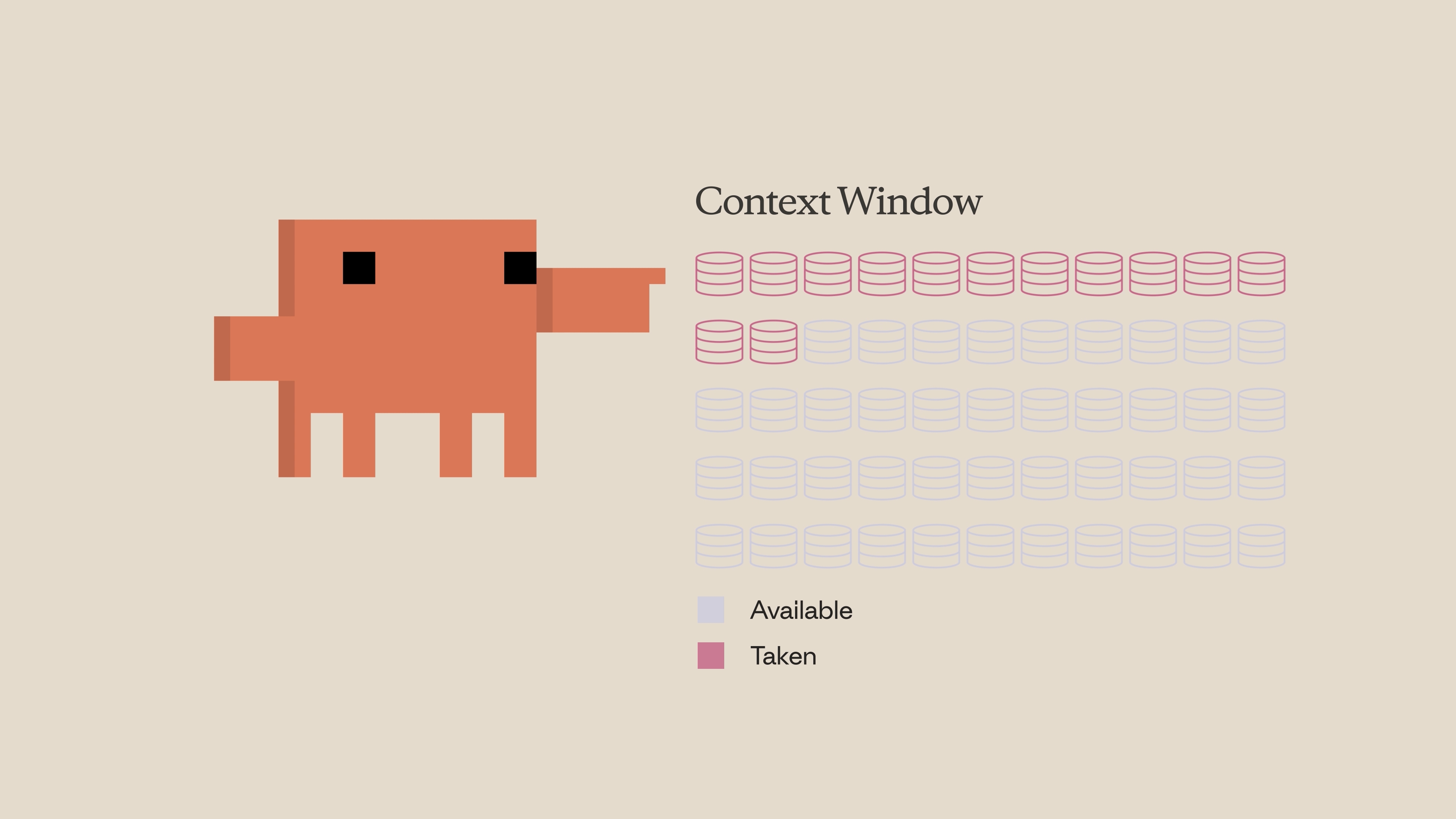
Think of the context window as the amount of space Claude can hold in its memory. Whenever you enter a prompt, Claude reads a file, runs a tool call, or receives a tool call result, it's all adding to the context window. Since there's a finite amount of space, it becomes important to optimize how you use it.
What Happens When Context Fills Up
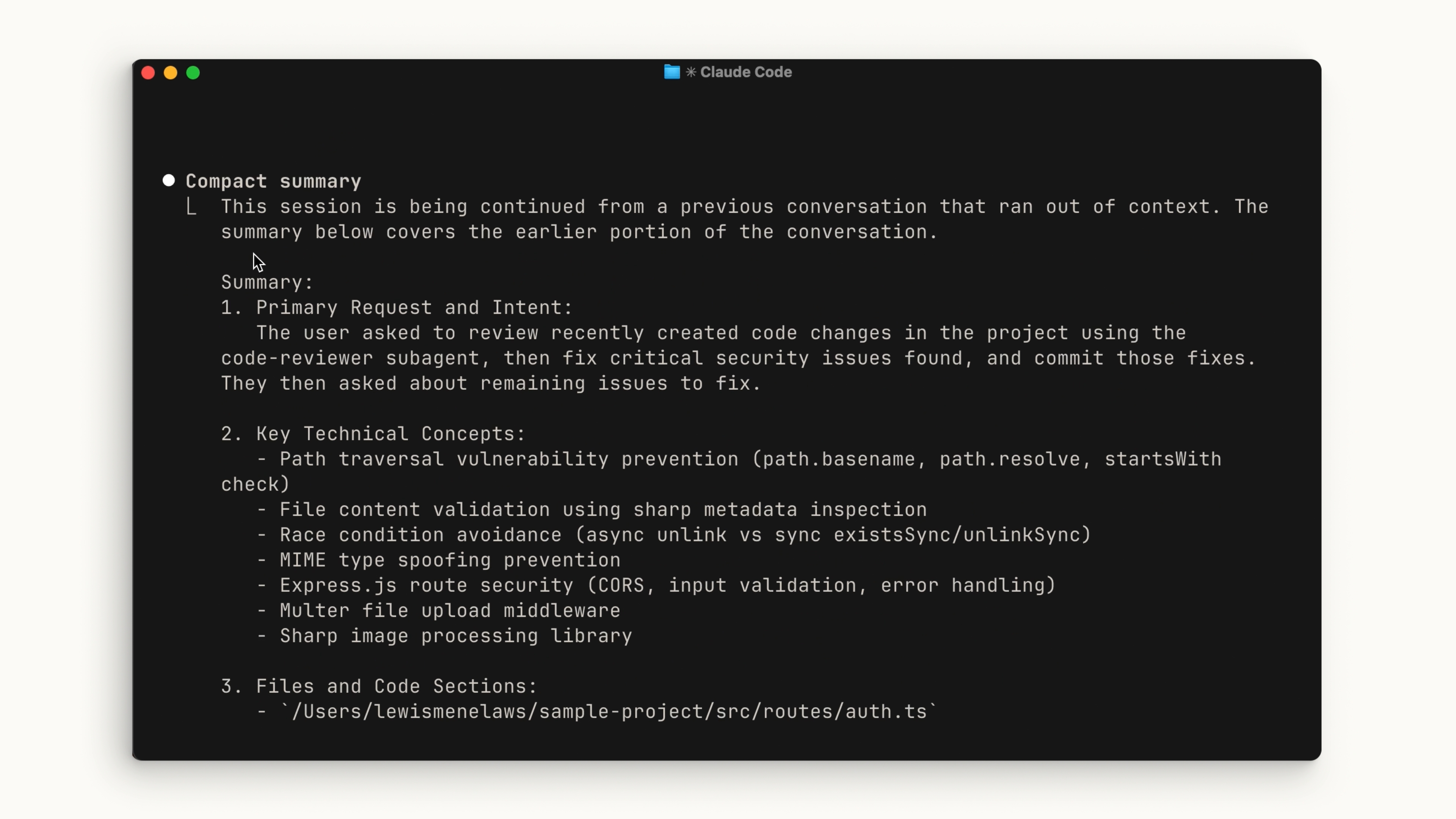
When you approach the limit, the context window is automatically compacted. Compaction summarizes important details and removes unnecessary tool call results to free up space. Note that this process can potentially lose details.
Commands
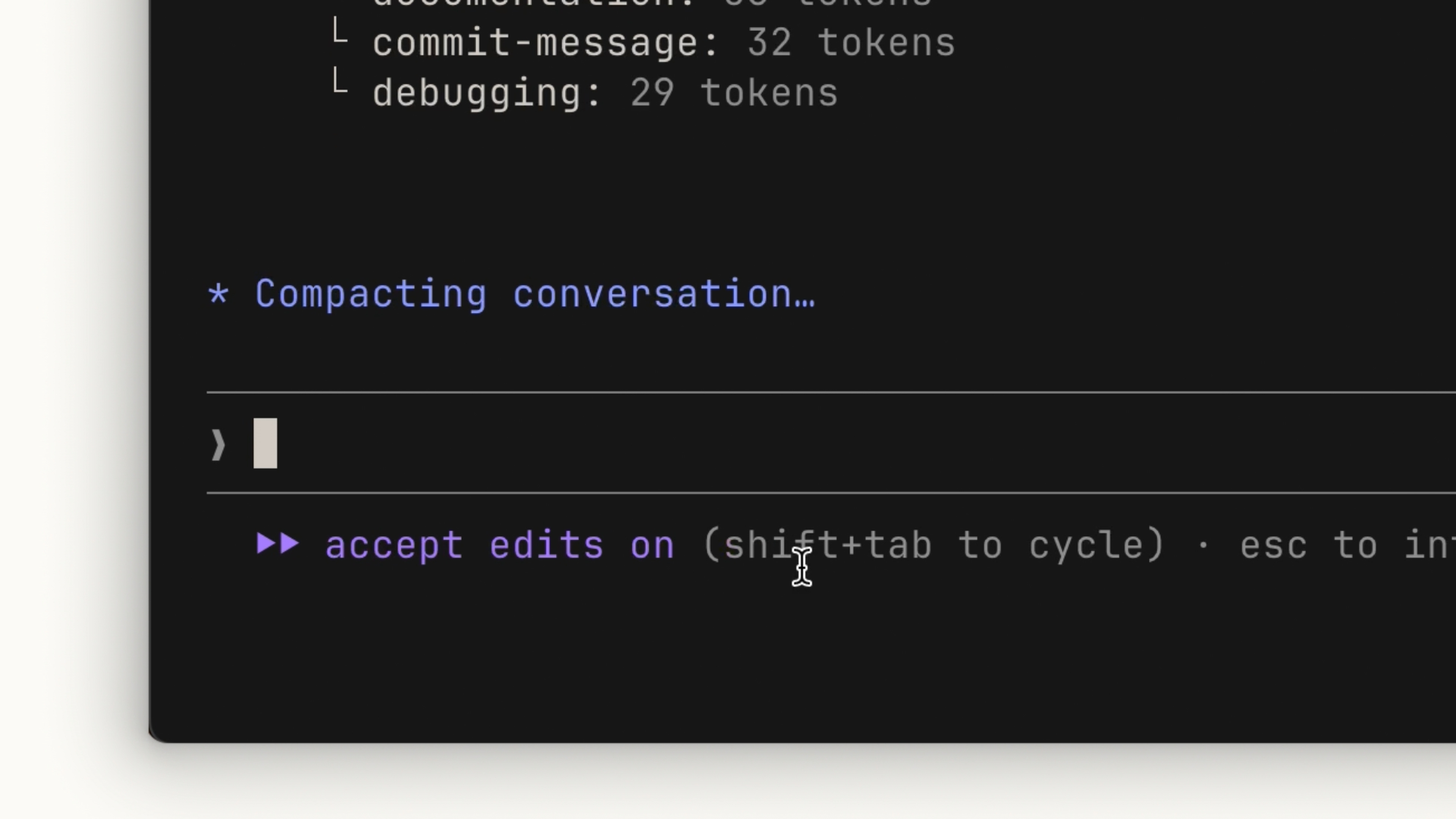
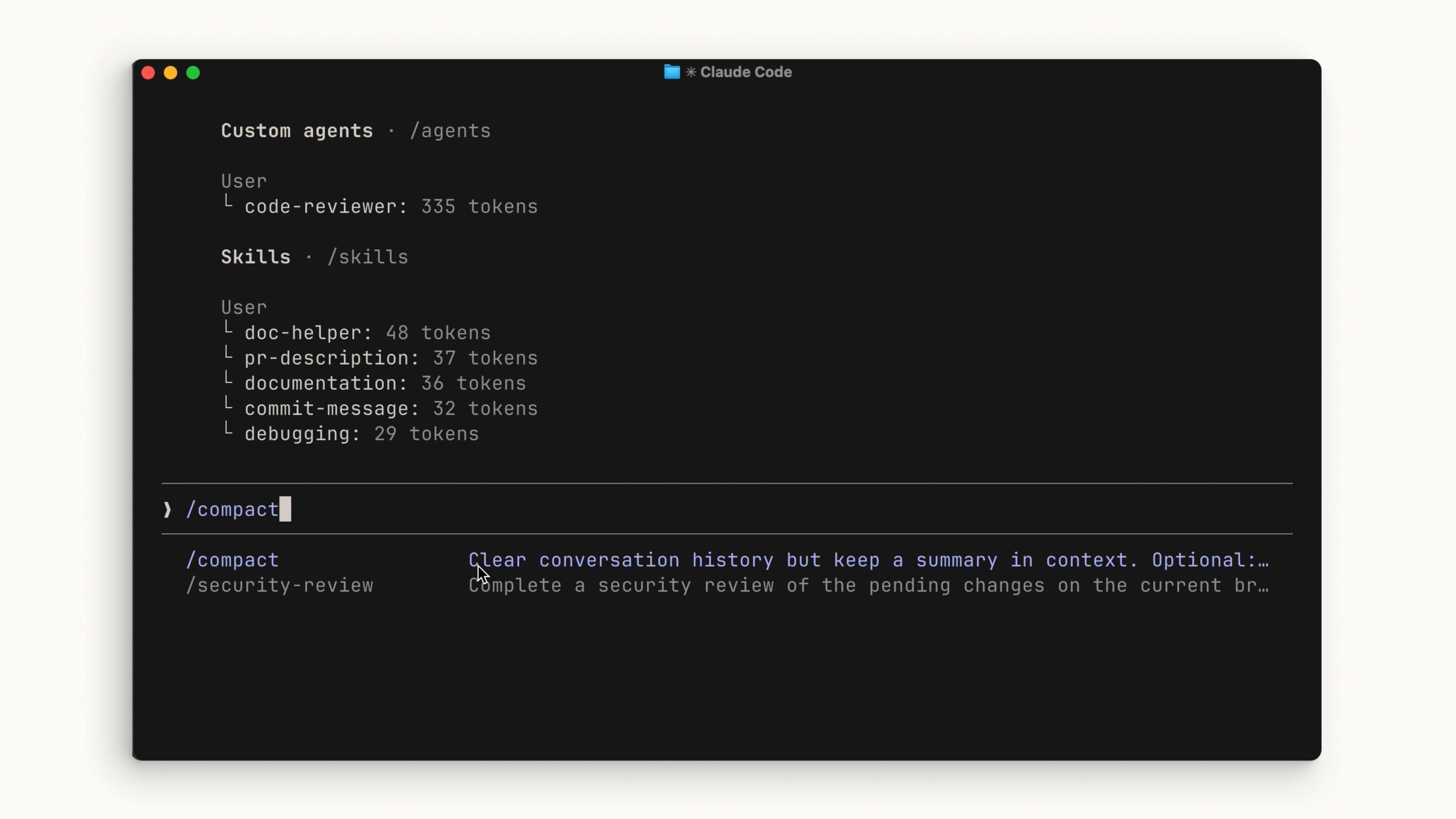
You can run compaction manually with the /compact command. This compacts everything up to that point. It's handy when you want to free up context space while keeping a memory of what you previously worked on.
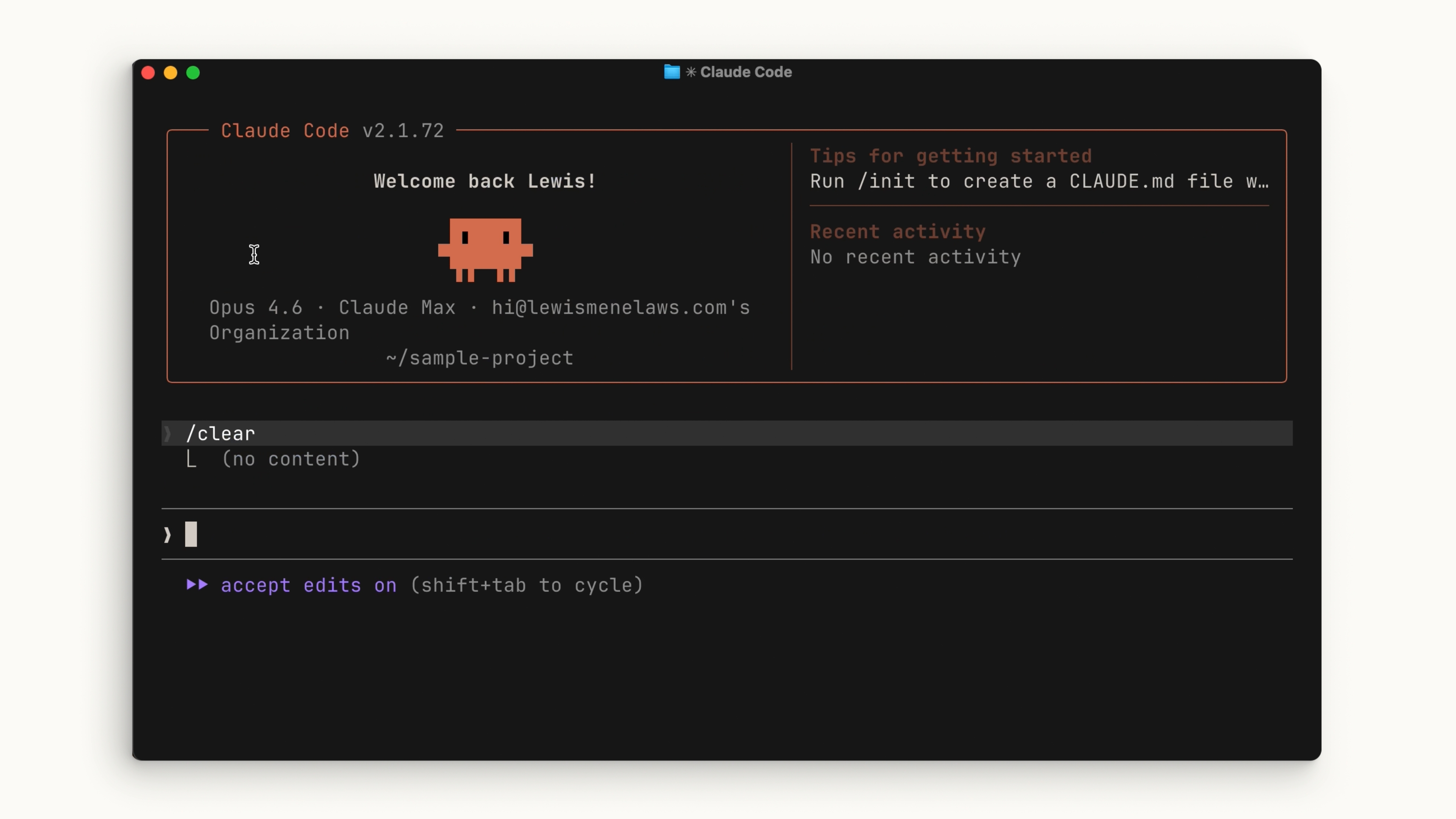
If you want to completely start from scratch with no memory of the previous session, run /clear. This removes everything.
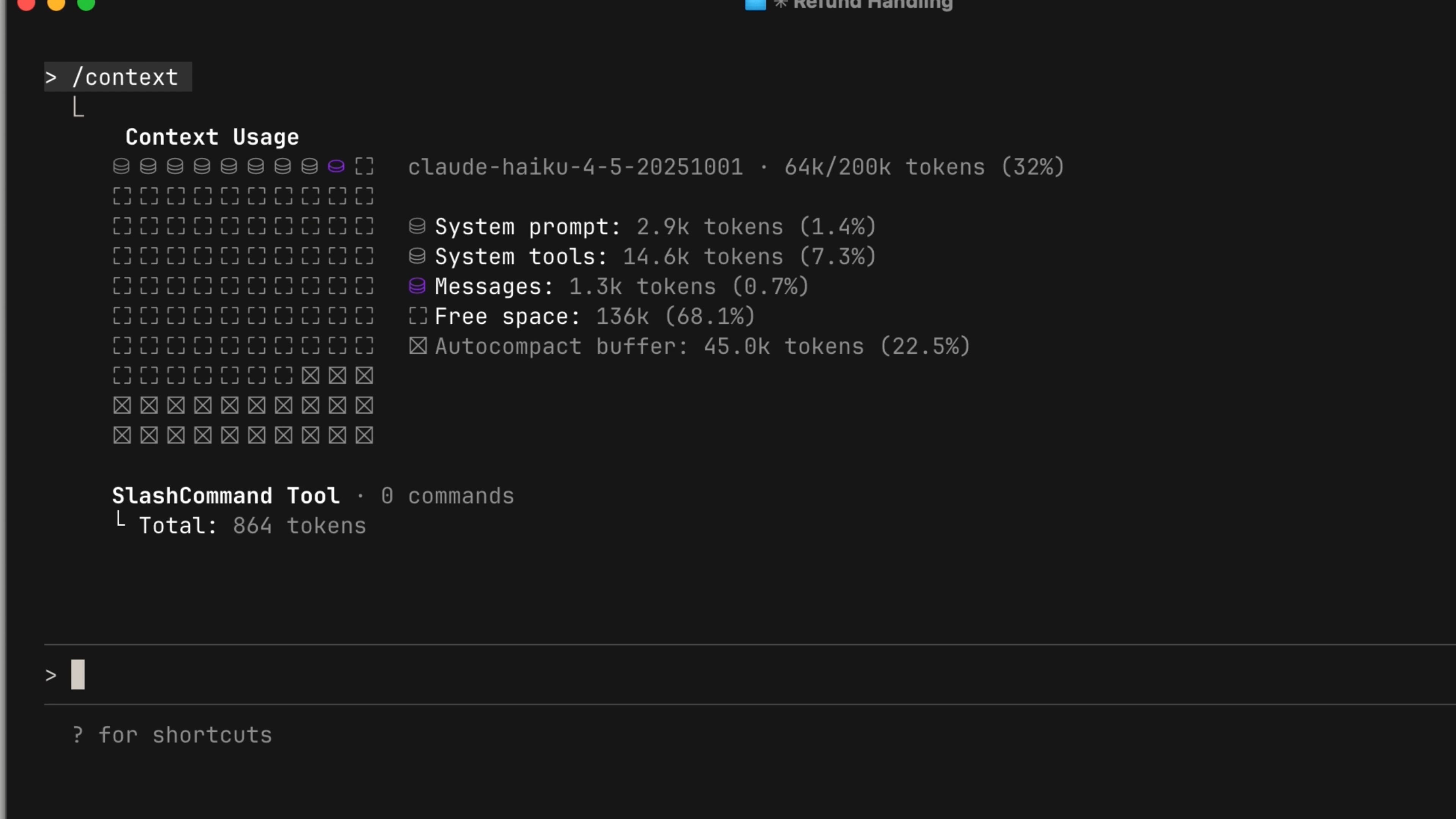
To check the state of your context, run the /context command. You'll get a high-level overview of your context size, the categories taking up the most space, and a visual graphic showing the breakdown.
When to Use Which
A general rule of thumb:
-
Use
/compactwhen you're working on a specific feature and running up against the context limit but need to continue. Keeping the context relevant to your current feature is important. -
Use
/clearwhen you want to start a new feature. You don't want the previous conversation to introduce bias into something new. For things you want Claude to remember across sessions, put them in your CLAUDE.md file so it doesn't have to rediscover things from scratch.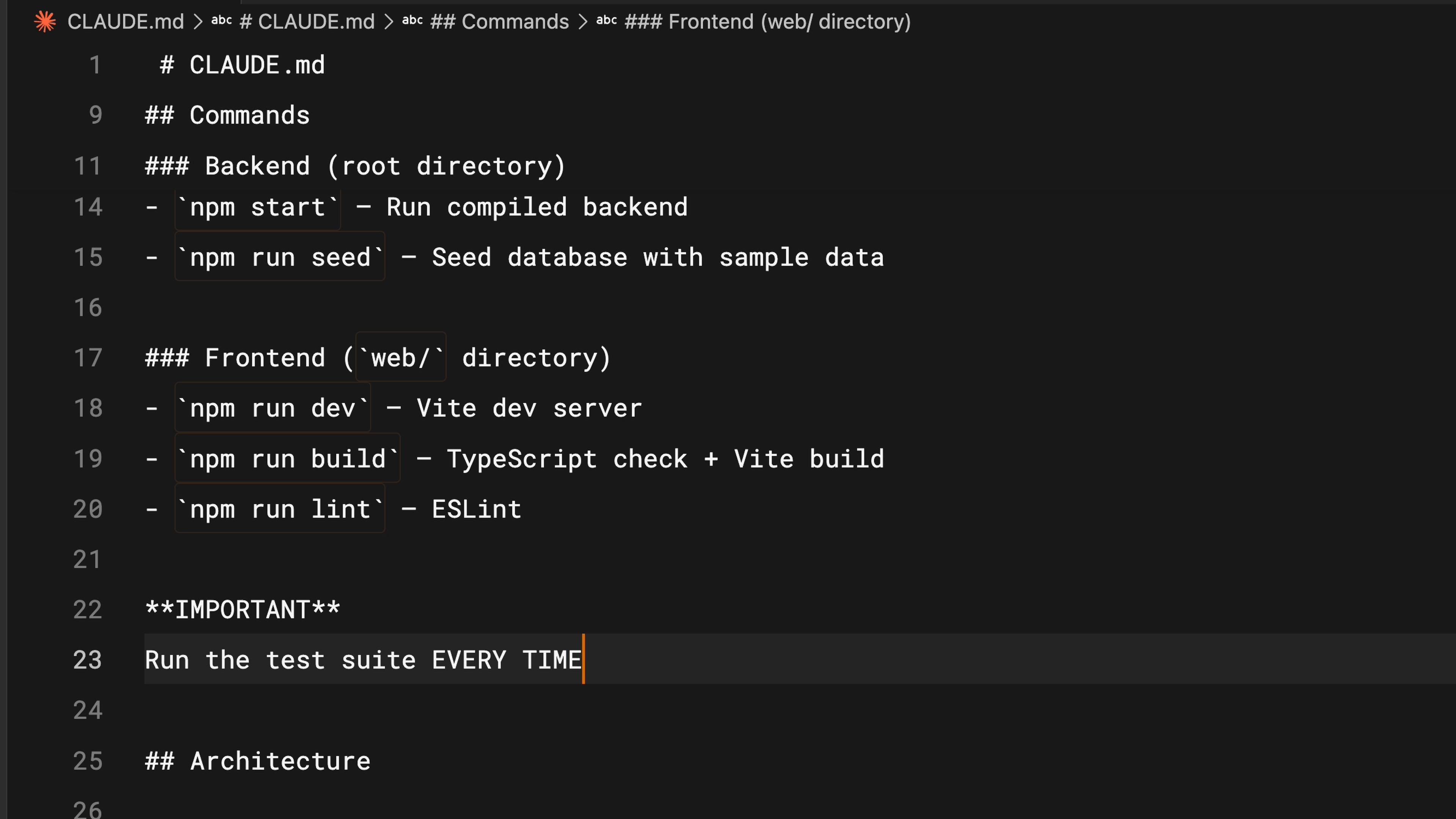
Tips for Saving Context Space
Be specific. A vague prompt might seem smaller, but it actually costs more context in the long run. Without clear instructions, Claude is forced to explore your codebase more and do its own reasoning — which takes up far more context space than a detailed prompt would.
Manage your MCP servers. MCP servers load all of their available tools into context by default, even when you're not using them. If you have servers configured for things unrelated to the current project, consider turning them off. You can also try "Skills," which work similarly to MCP servers but don't load everything into context upfront.
Use subagents. Subagents run in parallel with your main agent but have a completely separate context window. For tasks where you only need the answer — like "where are the authentication endpoints located?" — a subagent does the work and returns just a summary to your main agent, keeping your primary context clean.
Recap
Managing context within Claude Code is crucial. Use /compact to summarize long sessions and /clear to start fresh. To use your context window effectively: be specific with your prompts, check what's consuming your current context, and use subagents to delegate tasks where you only need the result.
🎬 Video transcript
Source video:
eW3oTyfeWZ0
📜 Click to expand transcript (cleaned + AI-translated)
Understanding Claude's Context Window
Context is Claude's working memory. Every file it reads, every command it runs, and every message you send takes up space in the context window. Think of the context window as the total amount of information Claude can hold in its memory at one time.
Whenever you enter a prompt, Claude reads a file, runs a tool call, or receives a tool call result, that data is added to the context window. Since there is only a finite amount of space available, it becomes extremely important to optimize this as much as possible.
Context Compaction and Clearing
When you approach the limit, the context window is automatically compacted. Compaction summarizes important details and removes unnecessary tool call results to free up space. However, note that this process could potentially lose some specific details from your previous conversation.
Manual Context Management
/compact: You can run compaction manually with the/compactcommand. This will compact everything you have done up to that point. This is handy if you want to clear up context space while still retaining a memory of what you previously worked on./clear: If you want to start completely from scratch without any memory of previous work, you can run the/clearcommand. This removes everything and resets the session./context: To check the state of your memory, run the/contextcommand. This provides a "big picture" view of your context size, showing which categories are consuming the most space, accompanied by a visual graphic.
Best Practices for Context Optimization
A general rule of thumb for managing your session:
- Compact when you are working on a specific feature and are hitting the context limit but need to continue. Keeping the context relevant to the current feature is important for ongoing development.
- Clear when you have finished a plan and want to start on a completely new feature. You do not want the previous conversation to present bias in the new tasks you want to create.
Persistent Memory with claude.md
For information that you want Claude to remember across different sessions, put it in the claude.md file. This ensures Claude doesn't have to rediscover core project details from scratch every time.
Prompt Specificity
The irony behind writing a smaller, vague prompt is that it can take up more context in the long run. Without being explicit, Claude is forced to look around your codebase more and perform its own "thinking," which consumes significantly more context window space than if you were just a little more clear with a sentence or two.
Advanced Optimization: MCP and Sub-agents
MCP Servers and Skills
MCP servers load all available tools into the context by default. If you have many MCP servers active for things unrelated to your current project, it might be worth turning them off. You can also try out Skills, which work similarly to MCP servers but do not put the entire toolset into context, saving you valuable space.
Sub-agents
Sub-agents run in parallel with your main agent but have a completely separate context window. For tasks that require an answer without needing the full "journey"—such as asking "Where are the authentication endpoints located?"—you can have a sub-agent do the work. It will return just a summary to your main agent, keeping the main context window clean.
Summary
Managing context within Claude Code is crucial for efficiency.
- Use
/compactto summarize long sessions. - Use
/clearto start fresh and avoid bias. - Be specific with your prompts to reduce unnecessary codebase exploration.
- Monitor your usage with
/context. - Use sub-agents to delegate tasks where you only need the final answer.
🔁 Related lessons
- Next: Code review
- Previous: The explore → plan → code → commit workflow
- Same section: The explore → plan → code → commit workflow · Code review
- Part of paths: Path C
- Reference docs: Glossary · Skills atlas · By use-case
📚 Source & attribution
- Original Anthropic Academy lesson: https://anthropic.skilljar.com/claude-code-101/469793
- © 2025 Anthropic. Educational fair-use only.