📖 Lesson content
What you'll learn
Estimated time: 6 minutes
By the end of this lesson you'll be able to:
- Identify the three modes in the Claude desktop app — Chat, Cowork, and Code — and what each is designed for
- Explain key features unique to each mode, including quick entry, scheduled tasks, and local vs. remote development
- Choose the right mode based on the type of work you need to accomplish
Navigating the Claude desktop app: Chat, Cowork, Code
The Claude desktop app gives you three ways to work with Claude: Chat, Cowork, and Code — from quick questions to complex research to building software.
Chat is the same Claude you know from claude.ai, plus quick entry, screenshots, dictation, and connectors that come from running natively on your computer. Cowork is an agentic tool — you give it a goal, connect it to your tools and resources, and let it do the work. With Cowork, Claude has the reach and the room to do more. This broader scope allows it to conduct more thorough research and analysis, and produce more complex documents and deliverables. Code is for building software, from writing and testing code to deploying it.
Cowork and Code run on the same engine. Both are Claude Code underneath — local to your machine, capable of independent work, able to spin up sub-agents and sustain long tasks. This allows Claude to work through larger tasks on its own, like research and writing or building software.
Each mode is designed around the work it serves, showing you what matters and giving you control where you need it.
Chat
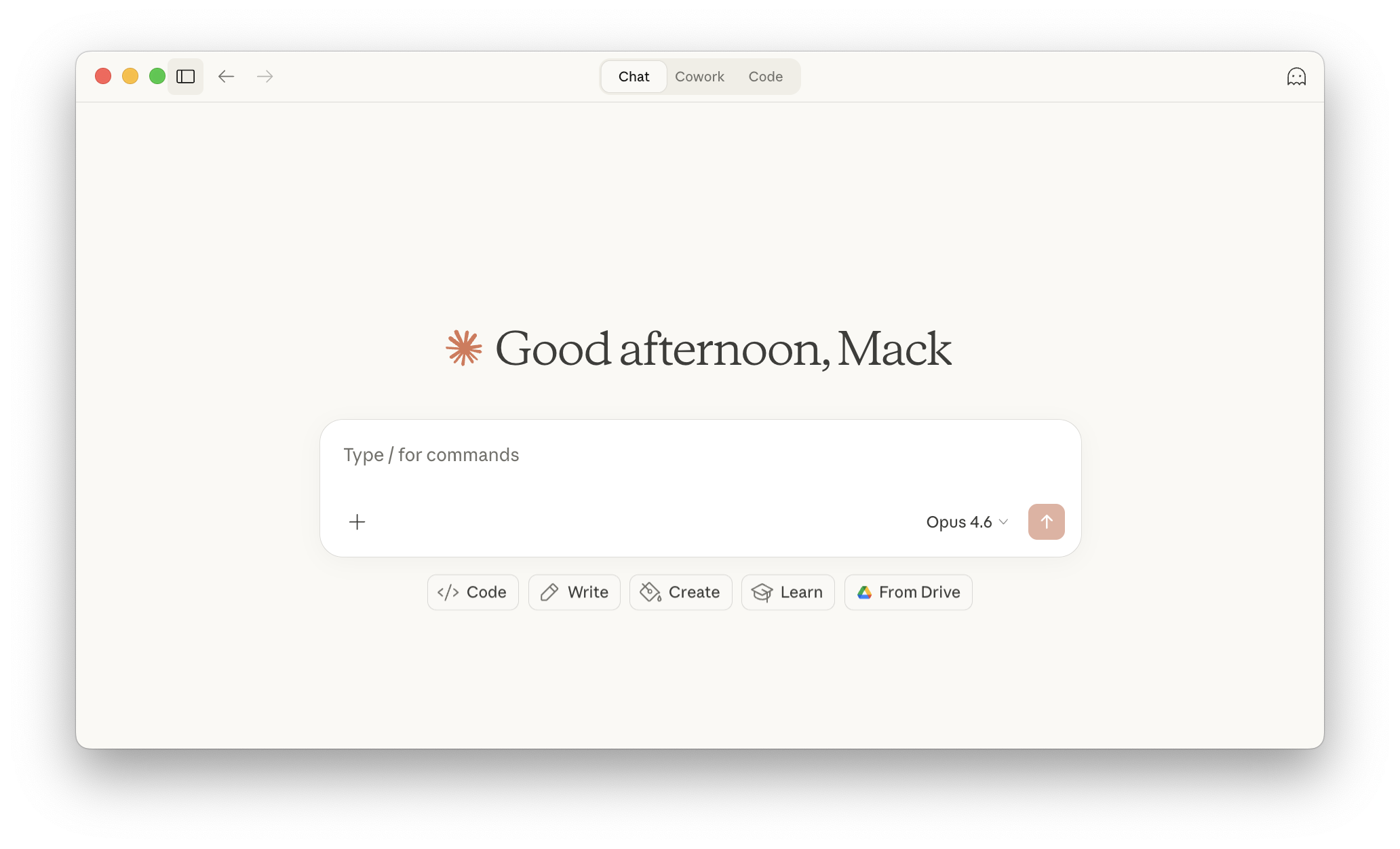
Chat excels when you need to ask questions, brainstorm, draft, or work through problems back and forth.
If you've used claude.ai, this works the same way, with a few things that come from running natively on your computer:
- Quick entry. Double-tap the Option key on Mac to pull up Claude over whatever you're working on. It responds in a compact window that stays on top as you switch between apps. You never have to leave what you're doing to ask a question.
- Screenshots and window sharing. Capture a screenshot or share a window so Claude sees exactly what you're looking at. Faster than describing what's on your screen, and more precise. (Mac)
- Dictation. Talk through a problem instead of typing. Useful when you're thinking out loud, away from your keyboard, or working through something where speaking is faster than writing. (Mac)
- Desktop connectors. Connect local tools and services through connectors so Claude can work with other tools on your machine.
Try it out when:
- You're staring at an unfamiliar dashboard. Double-tap Option, drag your cursor over the window to screenshot it, and ask “what do these metrics mean?” Claude answers in the overlay while the dashboard stays in view.
- You're in between meetings and want to think through how to structure a presentation. Open quick entry, switch to voice, and talk it through. Claude drafts an outline from what you said.
- You've been jotting down ideas for a product launch across Apple Notes for weeks. You add the Notes connector from Settings and ask Claude: “Pull together everything in my notes about the Osprey launch, figure out where I left things half-finished, and check my other connected tools for anything that fills in the gaps.” Claude reads your notes on your machine, pieces together what you have, and follows up where you trailed off.
Cowork
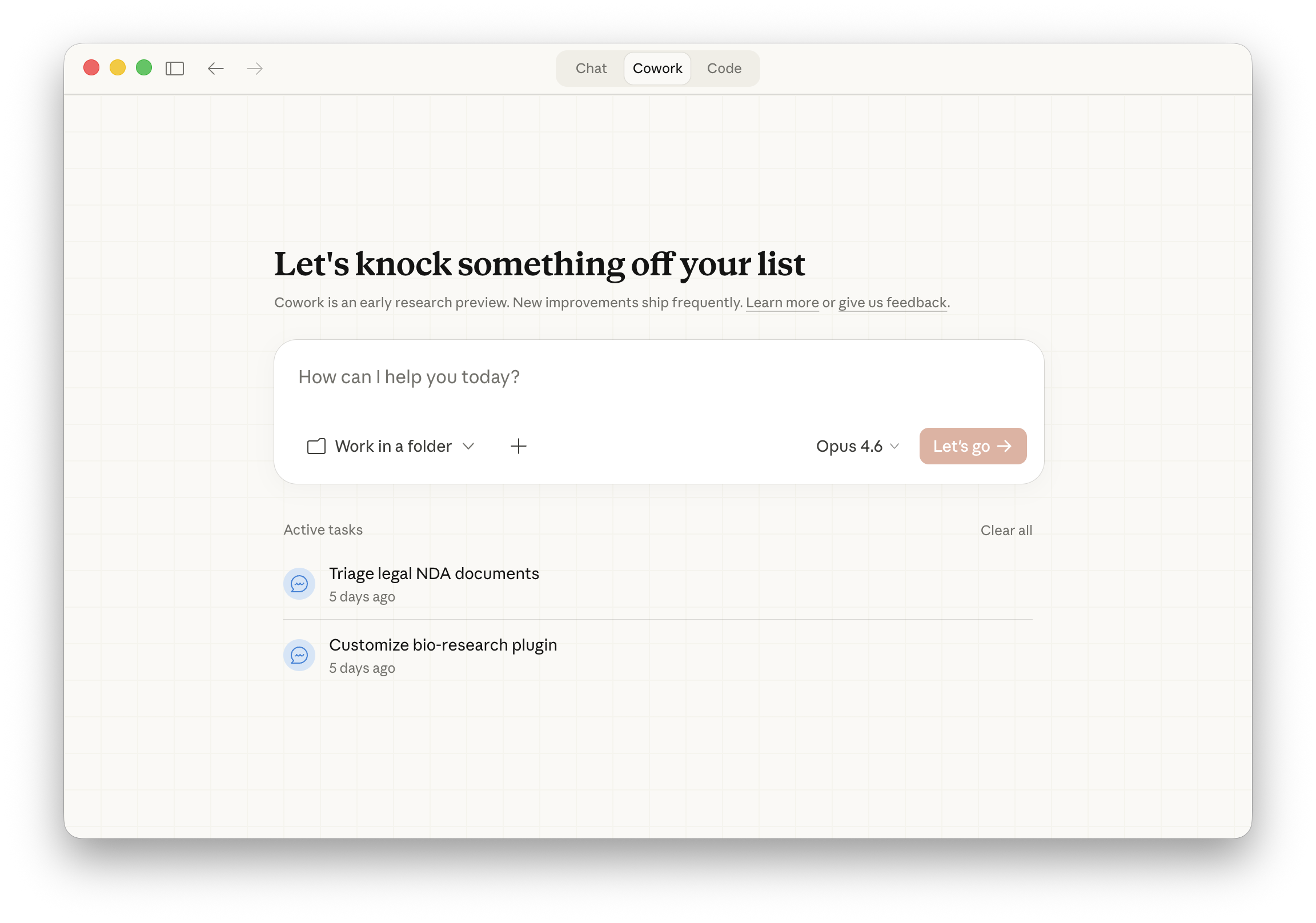
Claude Cowork is built for work that takes real effort: pulling information from many sources, making sense of it, and producing something finished.
In Cowork, Claude can multitask, tackling different parts of a project at a time, so it has the scope to draw from more sources and the stamina to see things through. Thorough research briefs, cross-source financial analysis, end-to-end contract review, polished slide decks from material spread across sources.
Before starting, Claude often asks a short set of questions to pin down what you need: scope, format, constraints. It builds a plan you can review in the sidebar. As it works, you see the task come together: sources it's drawing from, files taking shape, progress through the plan. You can run multiple tasks at once, each in its own conversation, and switch between them from the sidebar.
- Folder access. Point Claude to a folder on your computer and it reads what's there, figures out what's relevant, and saves finished work back to the same place. You can also upload files, paste content into the conversation, or connect tools that pull in what Claude needs.
- Scheduled tasks. Claude can handle recurring work on a schedule: a daily briefing that pulls from your Slack and calendar, a weekly roundup of what shipped, a morning inbox triage that sorts what needs your attention. You define the task and when it should run, and Claude handles it automatically each time the app is open. If your computer or the app was closed when a task was due, it catches up when you're back.
- Subagents. Background workers that Claude spins up to handle parts of a task in parallel. If you ask for something complex — like a research brief that pulls from multiple sources — Claude breaks it into subtasks, assigns each to a subagent with its own context, and coordinates the results, giving you one finished deliverable.
- Dispatch. A persistent conversation thread that allows you to continue your Cowork conversations from your phone. From the Claude mobile app, you can hand Claude tasks that use everything on your computer — your files, connectors, plugins, even desktop apps. To use this feature, you need both the desktop and mobile apps, with your computer awake and the desktop app open.
- Projects. Projects in Cowork let you group related tasks into dedicated workspaces with their own files, context, instructions, and memory. If you use projects on Claude, Cowork projects work similarly, but they live locally on your desktop and are built around the tasks you run through Cowork.
- Browser use. Connect Claude in Chrome and Claude can navigate websites, interact with pages, and pull what it finds directly into the task it's working on. This is how Cowork does things like check competitor pricing across ten sites or gather data from pages that don't have an API.
- Computer use. When Claude doesn't have a connector or plugin for what you need, it can navigate your computer directly — clicking, typing, and opening apps just like you would. Claude follows a priority order: connectors first, then Chrome, then screen interaction, so it always picks the fastest, most reliable path. You'll see a permission prompt before Claude accesses each app, and you can set up a blocklist for anything you want off-limits. Computer use is in research preview on Pro and Max plans, macOS only (Windows coming soon)
- Plugins. Plugins give Claude capabilities it doesn't have on its own: pulling live financial data, searching your company's internal knowledge base, or working within a specific compliance framework. Browse and add them from the Cowork interface to fit the task.
- Protected environment. Cowork runs in a contained space on your computer. Claude can read, create, and edit files within the folders you share, but can't access anything outside them.
Try it out when:
- You want to query all your tools like you would a database. Ask “review what we decided about pricing last quarter across meeting notes, Slack, and email, then update our Q3 deck with the findings?” and Cowork finds the answer across meeting notes, slide decks, email, and Slack threads.
- You're researching a new market, scoping competitors, evaluating tools. For any research that might span multiple tabs with hard to extract information, Cowork visits the sites, reads the reports, pulls the pricing, and delivers a structured brief with sources, without you opening a single browser tab.
- You need to work through a folder of 50+ project documents including contracts, financial reports, and meeting transcripts. You can ask Cowork to find the documents most relevant to your initiative, and produce a summary memo. Cowork reads every page, cross-references across the full set, and pulls out the patterns that only emerge from reading all of them. Review fifty like you'd review five.
- You keep doing the same work every morning — checking messages, pulling together a status update, prepping for the day's meetings. Set it up once as a scheduled task and Claude handles it on repeat, so you start the day with answers instead of admin.
Cowork is available to Pro, Max, Team, and Enterprise users, with new capabilities being added regularly.
Code
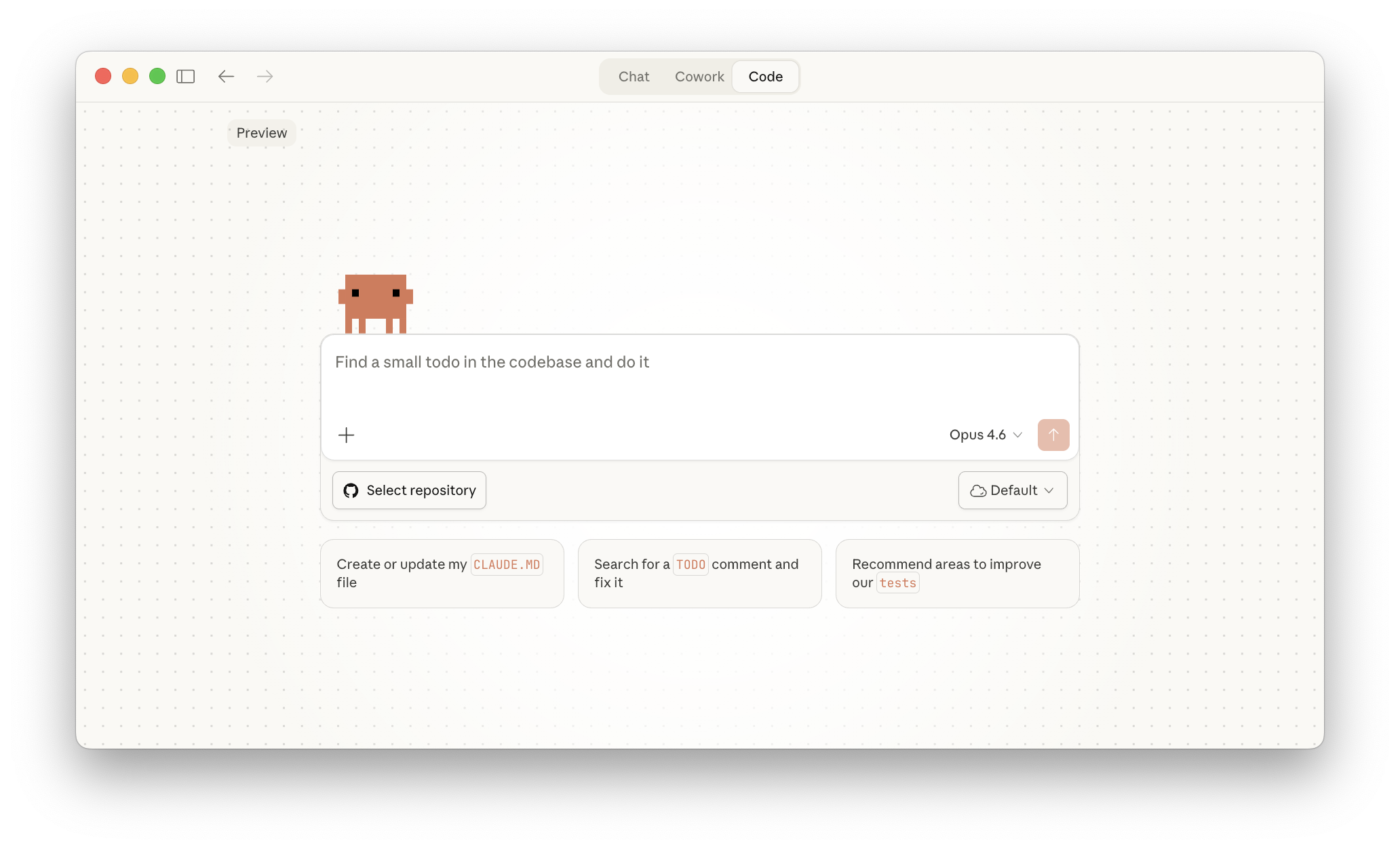
The Code tab gives you access to the power of Claude Code, running directly inside the desktop app. This gives you a full development environment for building software.
Via Code, Claude works directly in your codebase: reading what's there, writing and modifying code, running commands. Visual diffs show what changed, a built-in terminal shows commands as they run, and git tracks every version so you can always roll back.
Where Cowork runs in a contained workspace limited to the folders you share, Code runs directly in your project with full access to your file system, terminal, and development tools.
You choose where work happens:
- Local: You select a folder on your computer and Claude works directly with those files. Because it runs on your machine, Claude can read your project, access local tools, and run a development server you can preview in your browser.
- Remote: You connect a GitHub repository and Claude works in a cloud environment. Sessions continue even if you close the app, so you can start a big refactor and check back later. Good for larger codebases or when you want to keep development off your local machine.
Three interaction modes let you control how much Claude does on its own:
- Ask: Claude proposes every change and waits for your approval. You review a visual diff and accept or reject before anything is modified.
- Code: Claude applies file changes automatically but checks before running terminal commands.
- Plan: Claude outlines its full approach before touching anything. A dedicated plan viewer lets you review and revisit the strategy as work progresses.
You can run multiple sessions across projects and filter them by status (Active or Archived) and environment (Local or Claude) from the sidebar.
The Code tab is available on Pro, Max, Team, and Enterprise users.
Comparing the three modes
| Chat | Cowork | Code | |
|---|---|---|---|
| Optimized for | Quicker exchanges: exploring ideas, iterative drafting, quick answers, learning through dialogue | Complex or sustained work: research, analysis, file organization, producing finished documents and deliverables | Building software: writing, testing, running and deploying code |
| Key features | Quick entry, dictation | Work from local folders, plugins, subagents, scheduled tasks | Ask/Code/Plan modes, visual diffs, git integration, local and remote environments |
| Tools and extensions | Connectors, Skills, Claude in Chrome | Connectors (local and remote), Skills, Claude in Chrome, Plugins, Computer Use | Connectors, Skills, Claude in Chrome, Plugins, Hooks |
Lesson reflection
- Think about the tasks you most commonly use Claude for. Which mode — Chat, Cowork, or Code — would best fit each of those tasks?
- Consider a recent project where you needed to pull information from multiple sources. How might Cowork have changed your workflow?
What's next
In the next module, you'll learn how to organize your work and knowledge using Projects.
Feedback
As you progress through the course, we'd love to hear how you're using the Claude desktop app in your work, plus any feedback you may have. Share your feedback here.
🔁 Related lessons
- Next: Introduction to projects
- Previous: Getting better results
- Same section: What is Claude? · Your first conversation with Claude · Getting better results
- Part of paths: Path A · Path B
- Reference docs: Glossary · Skills atlas · By use-case
📚 Source & attribution
- Original Anthropic Academy lesson: https://anthropic.skilljar.com/claude-101/440908
- © 2025 Anthropic. Educational fair-use only.